

Add your own video to a question
Updated today
Record or upload your own video and attach it to a question, so respondents watch it before they answer. The video plays beside the question, and the video question format is available on every plan.
Turn on the video format
The format control appears in the right panel when you select an eligible block. Most question types support it, including the statement block. It is not available on group questions or on questions inside a group.
Open your form in the builder.
Select the question you want to attach the video to.
In the right panel, under Question format, select Video.
The block switches to a video preview that prompts you to add a video with Record or Upload.
If your organization does not have access to video questions, selecting Video shows "Video is currently unavailable for this organization."
Record or upload your video
Add the video right after turning on the format.
Select Record to open the camera and microphone recorder, titled Record your video question, or select Upload to pick a video file.
After recording, select Use this video to attach it. An uploaded file attaches once it finishes uploading.
Videos must be .mp4, .mov, .webm, or .m4v, up to 500 MB and up to 5 minutes long. Captions are generated automatically for a new video.
Example
This builder shows a Video & Audio block switched to the video format: the creator's video plays on the left of the preview, and Video settings is open in the right panel.
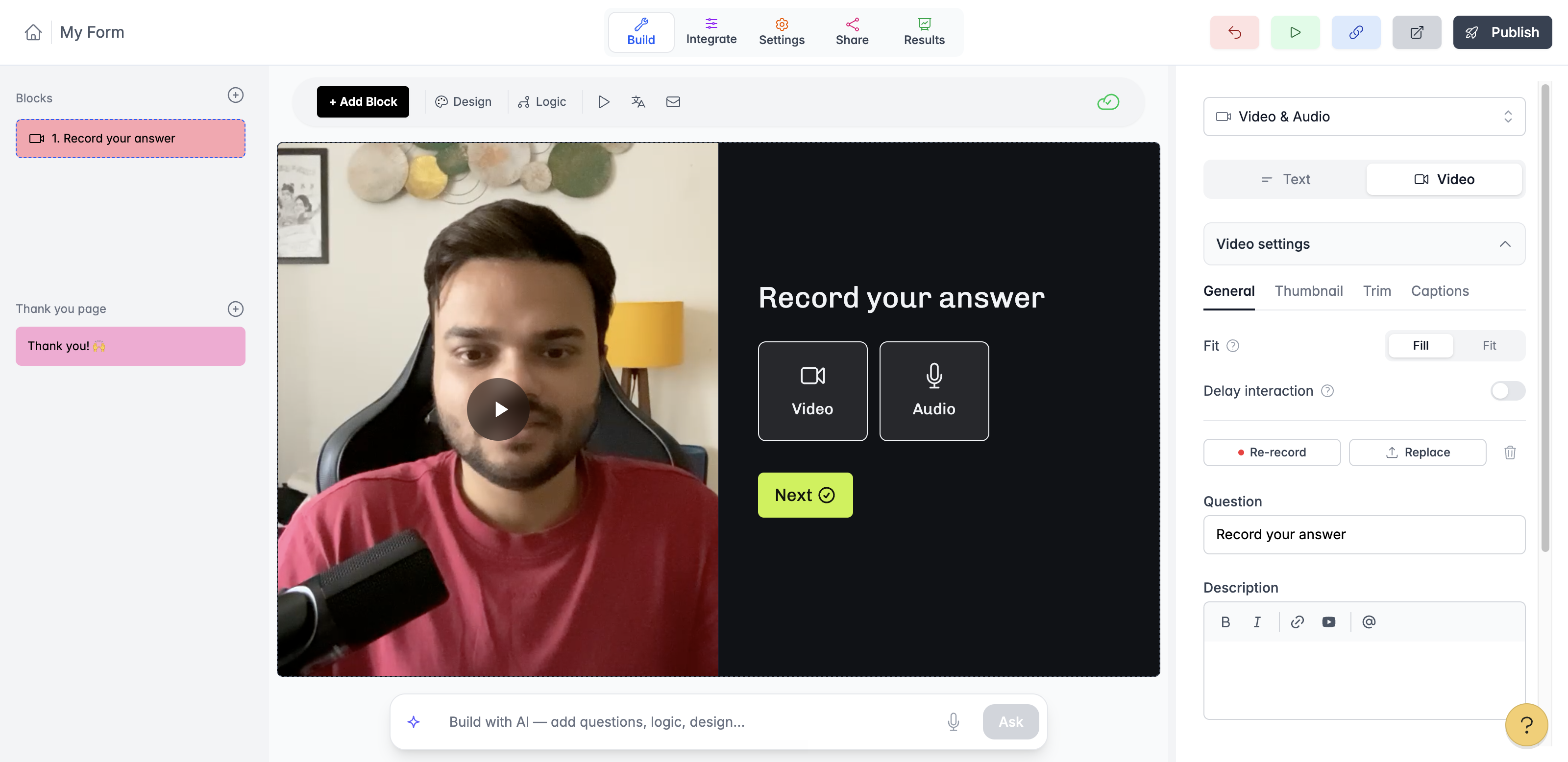
See a live example of the finished result: sample video question form. It plays the creator's video beside the question, and the respondent can answer with Video, Audio, or Text.
Video settings
Once a video is attached, the Video settings panel appears in the right panel, with the note that the video plays beside the question. Its four tabs control framing, when respondents can continue, the poster frame, the playback range, and captions.
General
Fit controls how the video fills its panel. Fill covers the whole panel and can crop the edges on narrow screens; Fit shows the entire video.
Delay interaction stops respondents from answering until they have watched enough of the video. Turn it on, then set the required seconds or choose Full length. While watch time remains, the continue button reads Watch the video to respond with a countdown. The lock releases through actual playback, so seeking ahead does not skip it.
Thumbnail
Pick a poster frame by dragging along the filmstrip, or select Upload an image to use your own picture. Respondents see the selected frame or image before they press play.
Trim
Set where playback starts and ends with the filmstrip handles. The shaded regions are trimmed away, and the panel shows the range that plays. Respondents' playback follows the trimmed range, and shortening the trim also shortens a delay that would exceed it.
Captions
Captions are generated automatically and shown by default. Review or edit the caption text in the box under the Captions tab; changes save when the box loses focus. Respondents can turn captions on or off with the CC button on the player.
What respondents see
The video plays beside the question. On desktop it sits next to the block; on mobile it opens full-screen with a Reply button that returns to the question. Respondents press Play video to start, and captions can be toggled with CC. If the video cannot play, the player shows "This video can't be played right now."
Re-record, replace, or remove
In Video settings, the General tab has Re-record to record a new take, Replace to upload a different file, and a remove option to delete the video.
To show a video hosted elsewhere, such as YouTube or Loom, you can also embed it in a statement block instead.