

Youform Pages: build a landing page for your form with AI
Updated today
Youform Pages turns a description of your offer into a landing page with your form built in. Describe what you do, refine the page with AI or by hand, connect a Youform, and publish. Open Pages from your dashboard or go to app.youform.com/pages.
Create a page with AI
Your page starts as a private draft. You decide when it goes live.
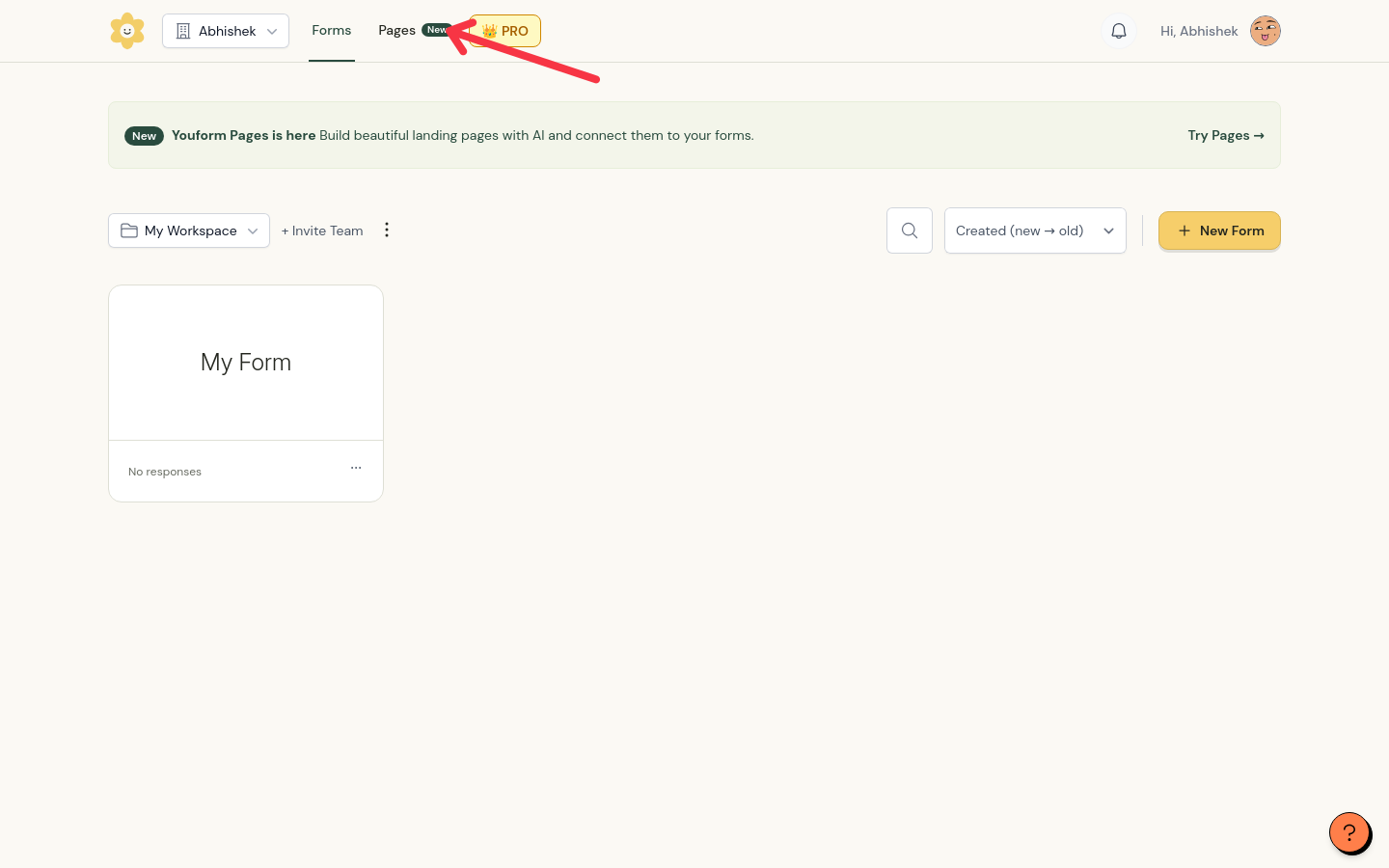
Open Pages in the top navigation, next to Forms. You can also click Try Pages in the dashboard banner.
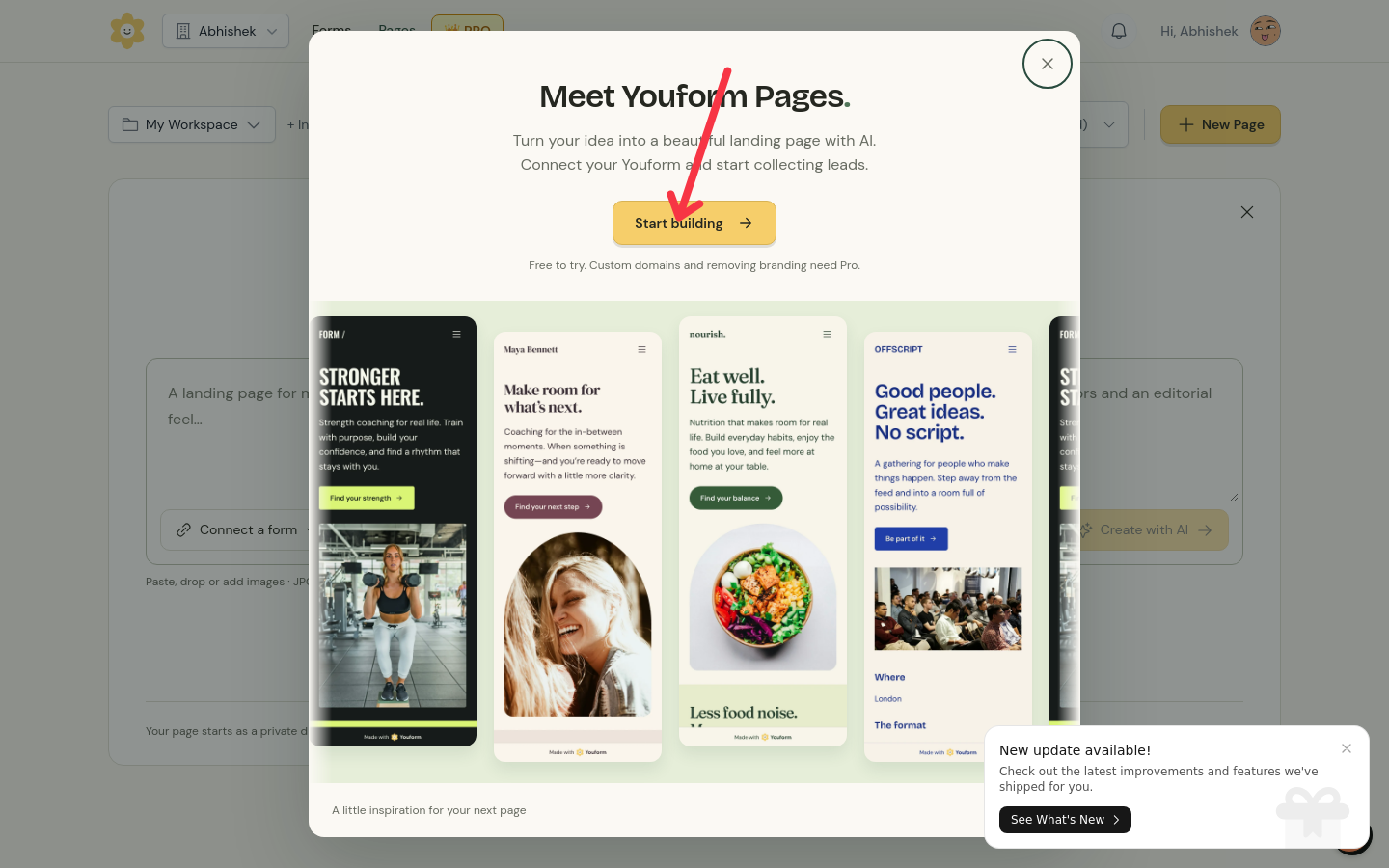
On your first visit, a Meet Youform Pages. dialog opens. Click Start building.
In Describe your landing page, write what you offer, who it is for, and what visitors should do. The prompt needs at least 8 characters unless you have already picked a form.
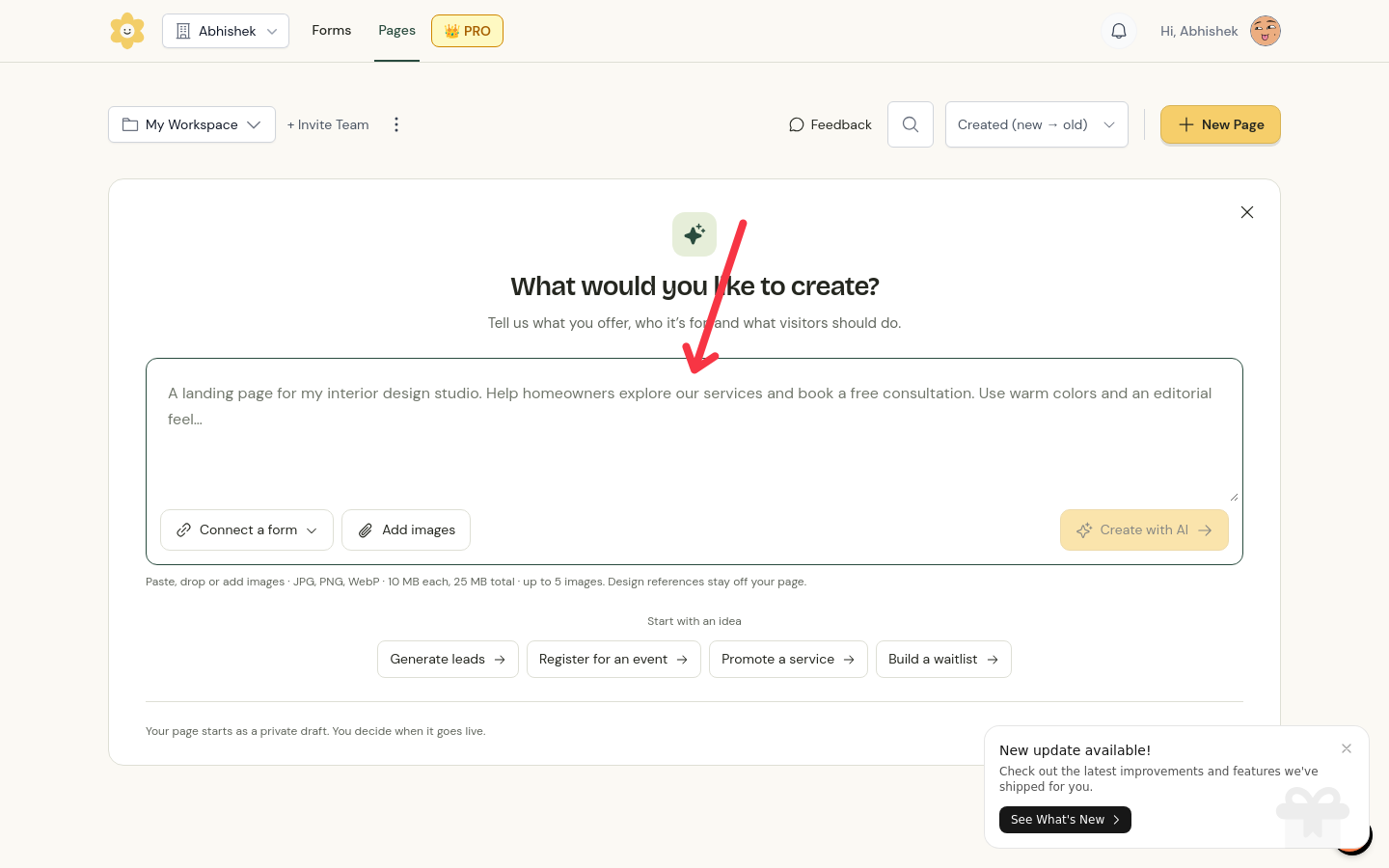
Optional: pick an example prompt to start from: Generate leads, Register for an event, Promote a service, or Build a waitlist.
Optional: attach images with Add images, or paste or drag and drop them. JPG, PNG, and WebP files work, up to 10 MB each, 25 MB total, and 5 images per request. For each image, choose Use on page, Logo, or Design reference. Design references guide the AI but stay off your page.
Click Create with AI. To skip AI, click Start with a blank page.
If AI asks clarifying questions under A little direction first, pick an answer, write your own, or click Skip and build.
AI requests for Pages are limited per plan and reset monthly: 20 a month on Free, 200 on Pro, and 500 on Business. The count covers every Pages AI request in your organization, not just one page. When you run out, the editor shows 0 AI requests left this month. You can keep editing manually.
Refine your page with AI
The AI composer stays open in the editor, so you can keep asking for changes after the first draft.
A prompt applies to the whole page, or to the section or element you have selected. When something is selected, the box asks What would you like to change here?
Use the quick suggestions Improve copy, Improve layout, or Add a section.
If a request fails, your saved draft stays unchanged and you can try again.
AI requests for Pages are limited per plan and reset monthly: 20 a month on Free, 200 on Pro, and 500 on Business. The count covers every Pages AI request in your organization, not just one page. When you run out, the editor shows 0 AI requests left this month. You can keep editing manually.
Generating a form with AI uses the separate Forms AI allowance, not your Pages allowance. If that limit is reached, your page stays safe and you can create the form manually or retry after the allowance resets.
Connect a form
Any part of your page that shows a form or a form button needs a connected Youform. Use the Connect a form control in the composer or the editor sidebar.
Click Connect a form.
Pick an existing form, listed by workspace and marked Published or Draft, or click Create new form.
The picker also lets you search, Disconnect, View responses, and Edit form. The connected form must be published before the page can publish. If AI just generated a new form for your page, you can publish both together: confirm I've reviewed the questions. Publish this new form with my page. and click Publish page and form. If the form generation failed, Retry form only retries just the form.
Edit your page manually
You do not need AI to edit. In the Build tab, switch between AI and Sections.
Add a section: click Add a section and pick a type from the searchable list, such as Hero, Testimonials, FAQ, Pricing, Video, Contact, or Footer.
Edit a section: select it to change its heading, text, layout, background, buttons, and items. Show this section hides or restores it, and Remove section deletes it.
Reorder or duplicate: use Move section up and Move section down, or Duplicate section (not available for Hero, Navigation, or Footer).
Edit an element: click it on the page to change text, button actions (Open your Youform, Open a link, Go to a section), destinations, video URLs, images, fonts, colors, and spacing.
Adjust the design
The Design tab has Basic and Advanced tabs. Changes preview instantly and save automatically.
Form appearance: choose Use form design or Match page colors.
Branding: set your brand name and logo, with logo size and alignment options.
Fonts: pick heading and body fonts, including Google fonts. Uploading a custom font (WOFF or TTF, up to 5 MB) is a Pro feature.
Colors: set page background, text, brand color, button text, and soft accent, or pick a ready-made theme.
Set the web address, SEO, and social image
Open Settings to configure how and where your page appears.
Web address: edit the page path. Use lowercase letters, numbers, and hyphens, up to 80 characters, starting and ending with a letter or number. The address is checked when you publish; if it is taken, you will see That page address is already in use. Choose another.
Domain: the Domain dropdown defaults to the Youform domain. Custom domains require Pro and must be a verified domain in your organization. Connect one from a form's Share settings first; see How to set up a custom domain in Youform?
SEO & search: set a page title (up to 160 characters), a description (up to 300 characters), a favicon, and whether search engines can index the page.
Social image: the image shown in shared links and on your dashboard. Use a generated template (headline, description, brand name, logo, and up to three photos) with a live preview at 1200 × 630, or upload a custom image.
Publish your page
Publishing saves a snapshot of your page. Edits after publishing update the draft only, so the live page stays unchanged until you publish again. The Pages list marks each page Live, Draft, or Unpublished changes.
Open the publish dialog: it says Ready to go live? the first time and Publish your changes after that.
Fix anything the checks flag: the page needs at least one content section, a connected form must be published, form and link buttons need destinations, the Video section needs a URL, Before & after needs both images, and Comparison needs at least two columns.
Click Publish page. You will then see Your page is live, with Copy link and Open page options.
To take the page down, click Take page offline and confirm. The public link stops working, but your draft and version history are kept, so you can publish again at any time.
Track visits
The Analytics tab shows who is visiting your published page, for one page or all pages in your workspace.
Traffic: visitors, pageviews, average time on page, and live pageviews from the last two minutes.
Form funnel: page visits, form viewed, form started, and form completed, plus the visit-to-completion rate. It covers only forms filled out on the page; standalone form traffic stays in Forms analytics.
Breakdowns: referrals (with direct and unknown sources), devices, and countries.
Date range: pick any range up to 365 days.