

How to sync large number of rows to Google Sheets?
Updated 3 months ago
In Youform's Google Sheets integration, after you attach a sheet, you can sync your previous data to the Google Sheets using the sync button on the integration page.
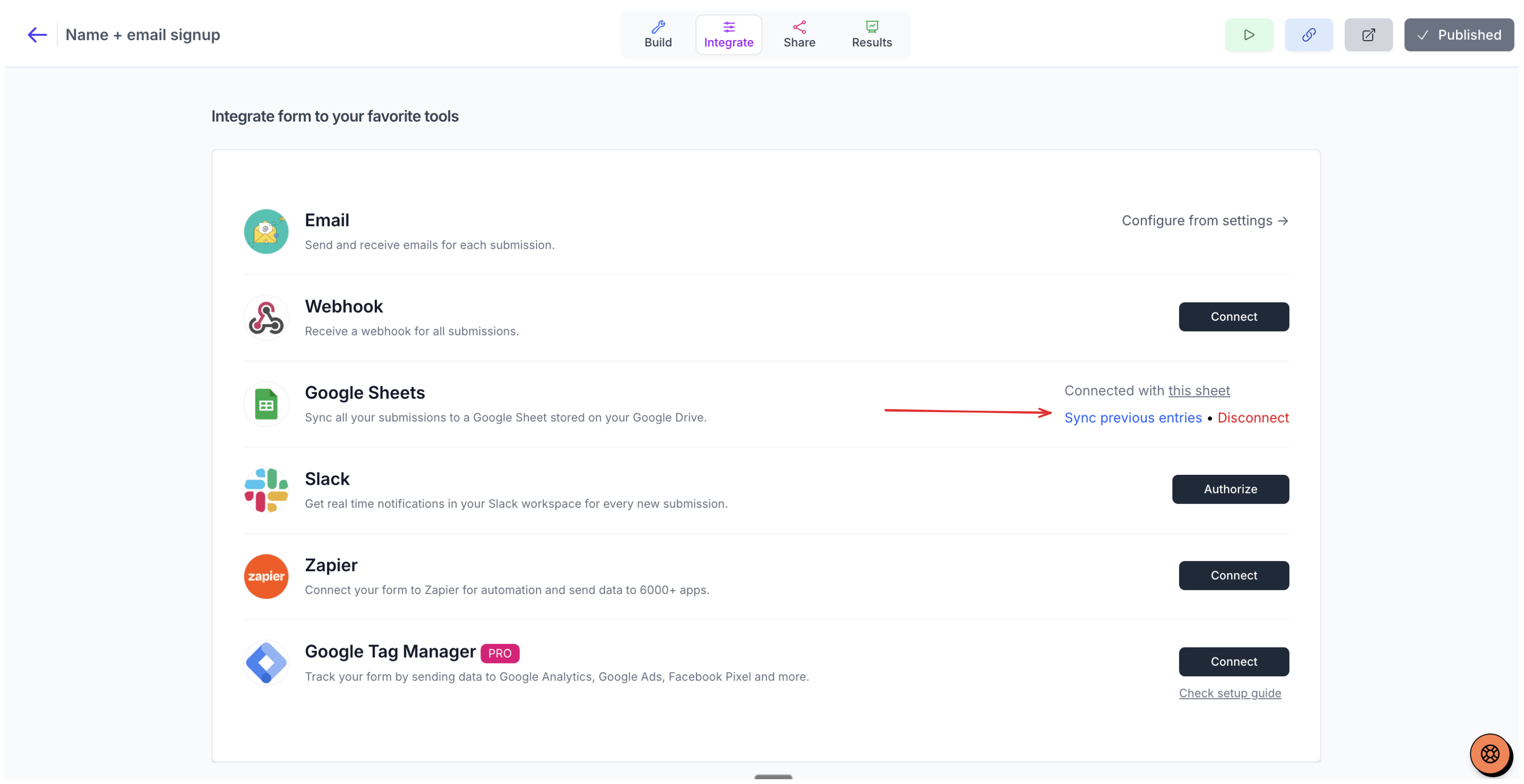
But sometimes, you might have already accumulated a lot of data (more than 5000) and the sync of the old data will not work. In that case, you need to add the old data to your sheet manually. Here is how you can do it:
Connect a Google Sheet from the integrations page (if you have not already done it).
Go to your results tab and download the submissions.
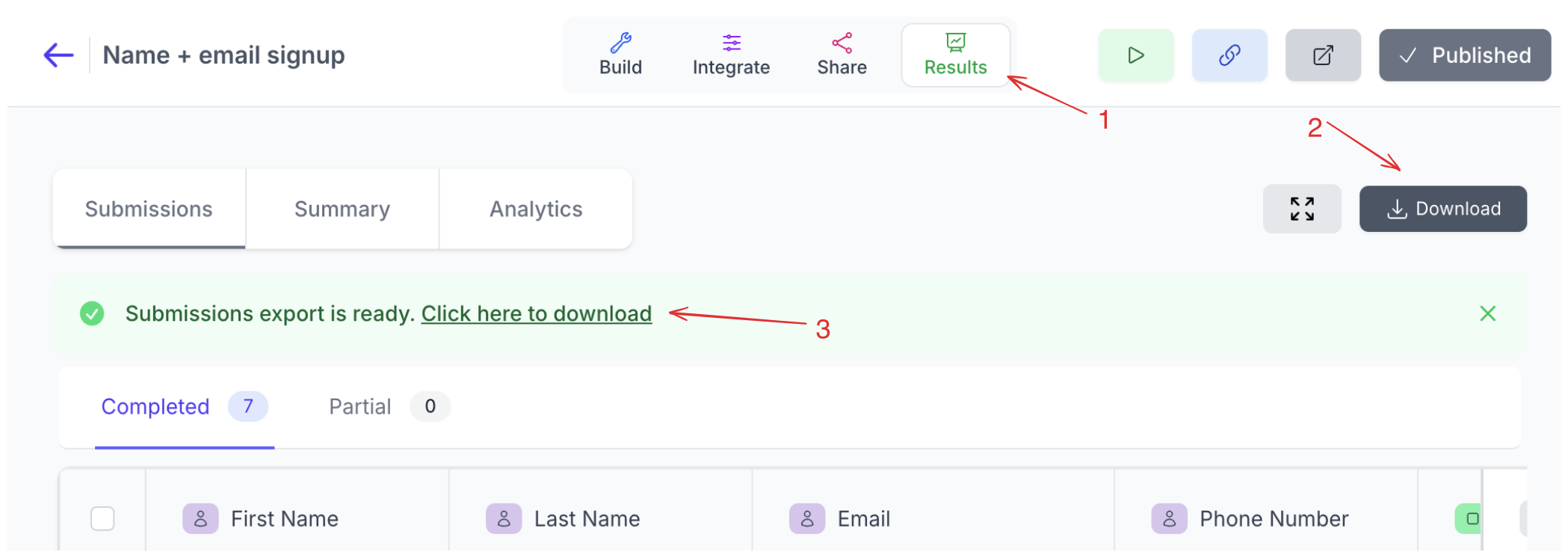
Open the downloaded CSV in Google Sheets and remove the first row and first column
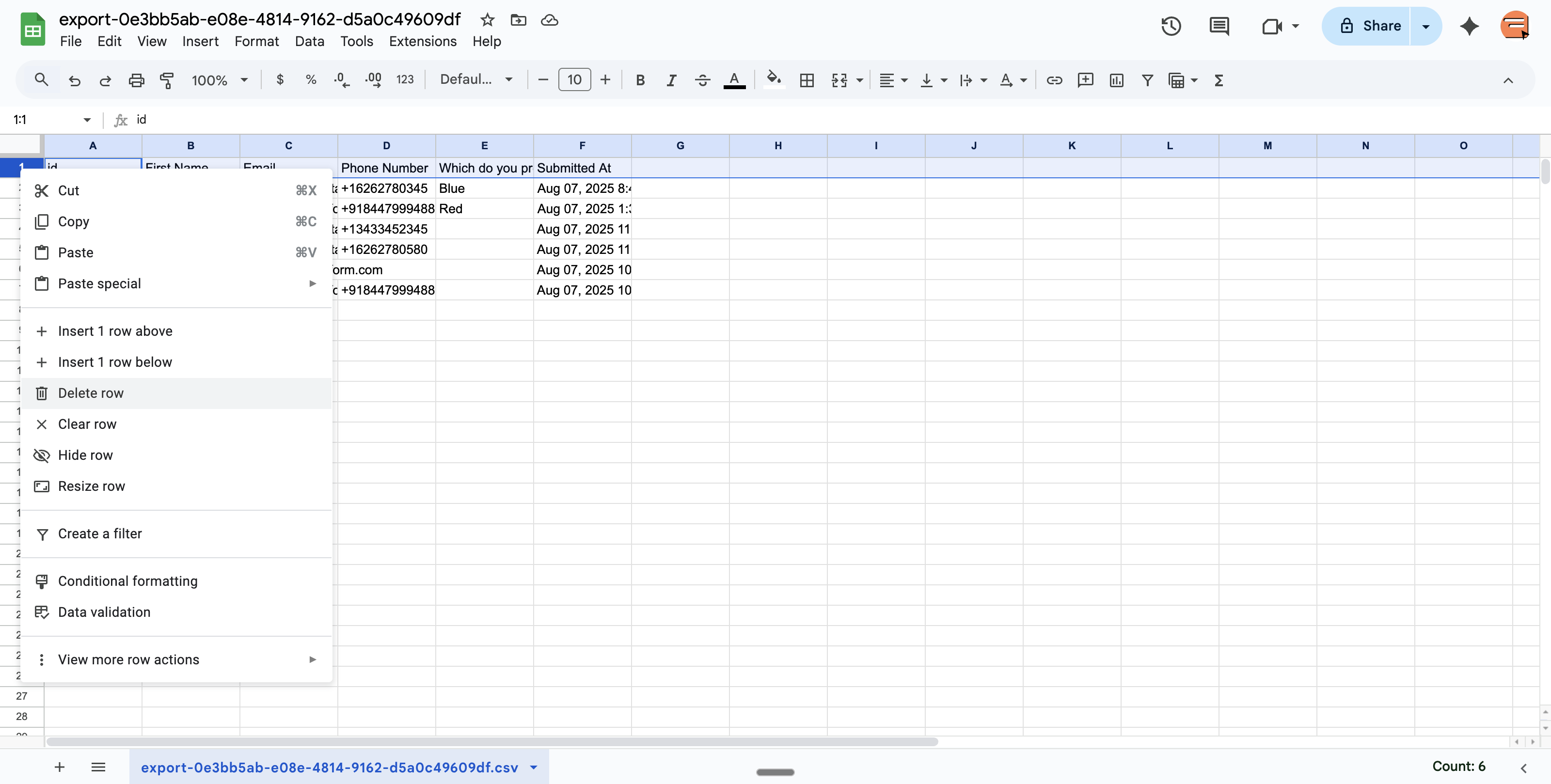
You should remove the first row and the first column from exported results sheet.
Download it as a CSV
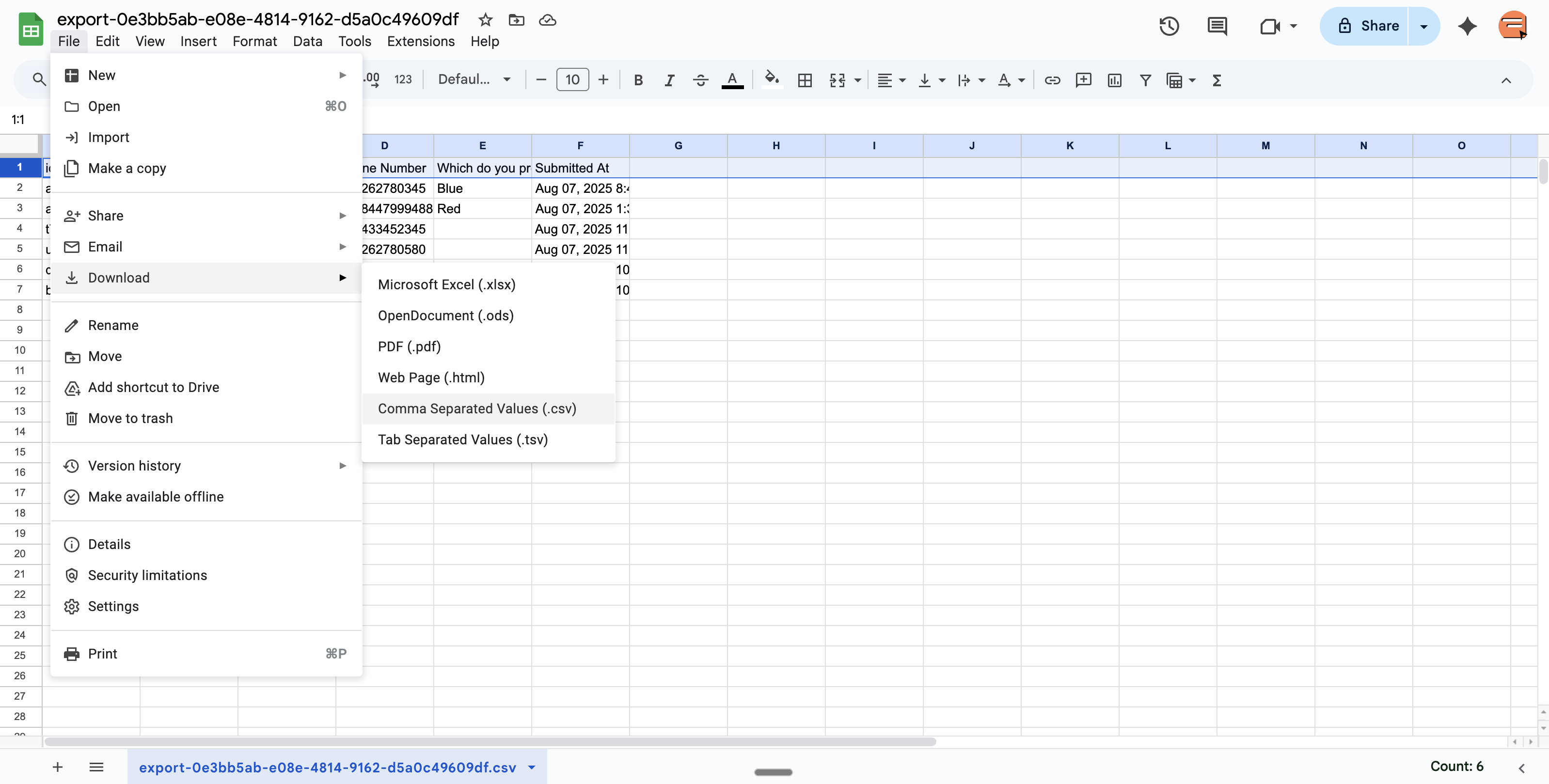
Open the Google Sheet that is attached to your form
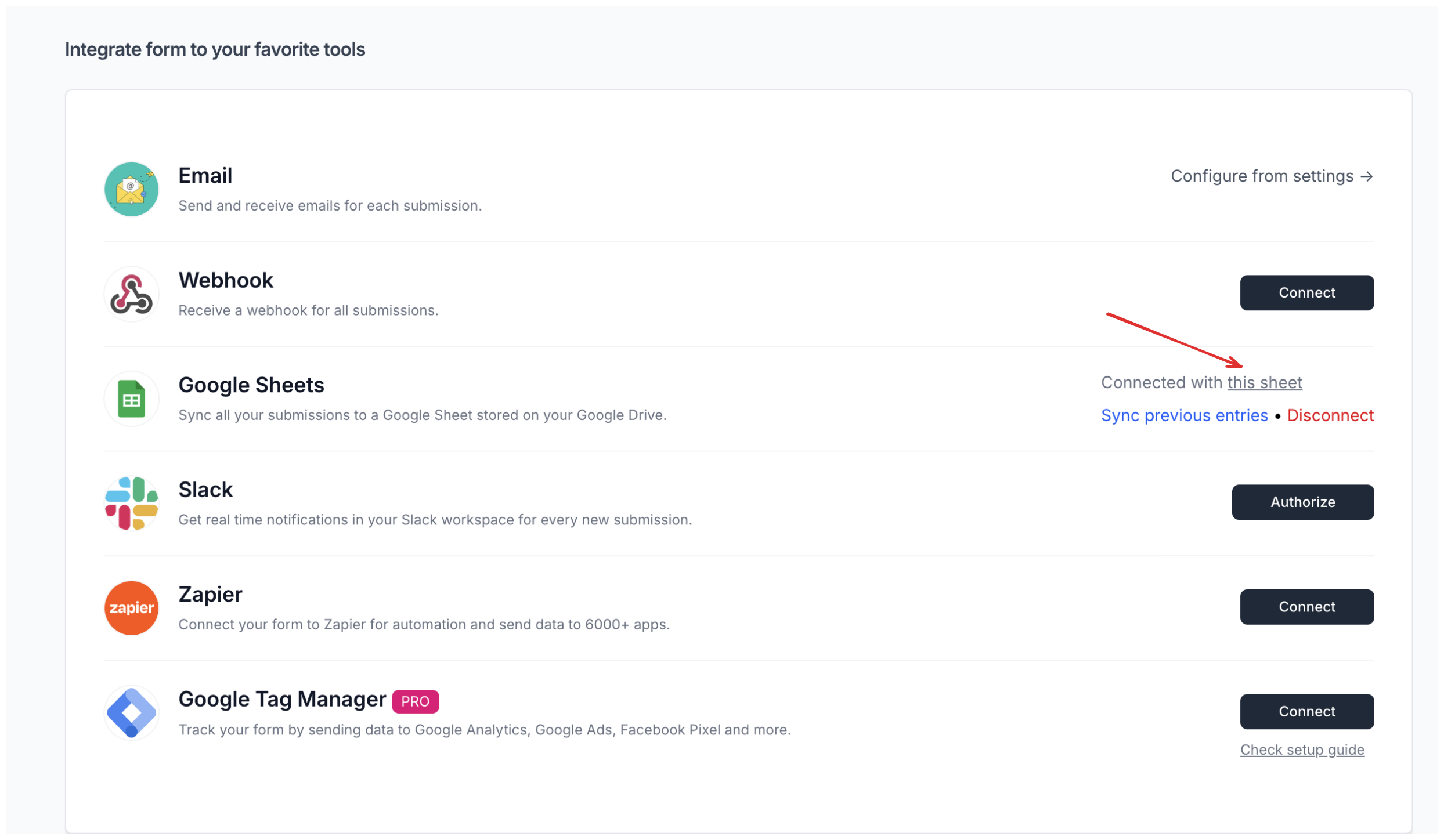
You can open the attached Google Sheet of the form from the "Integration" page.
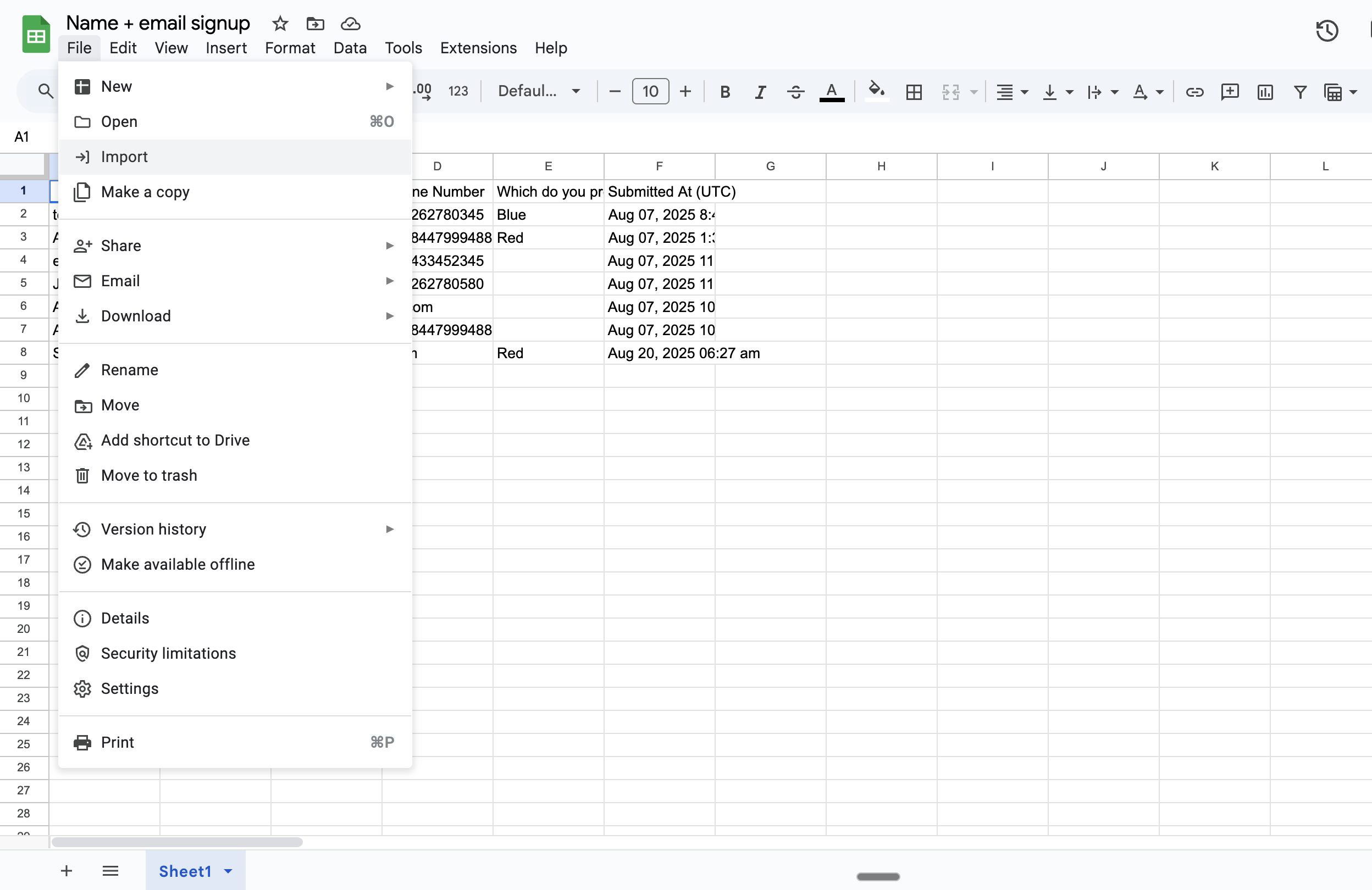
On the Google Sheets page, go to File > Import > Upload tab and upload your current old data CSV file (that you downloaded in step 4).
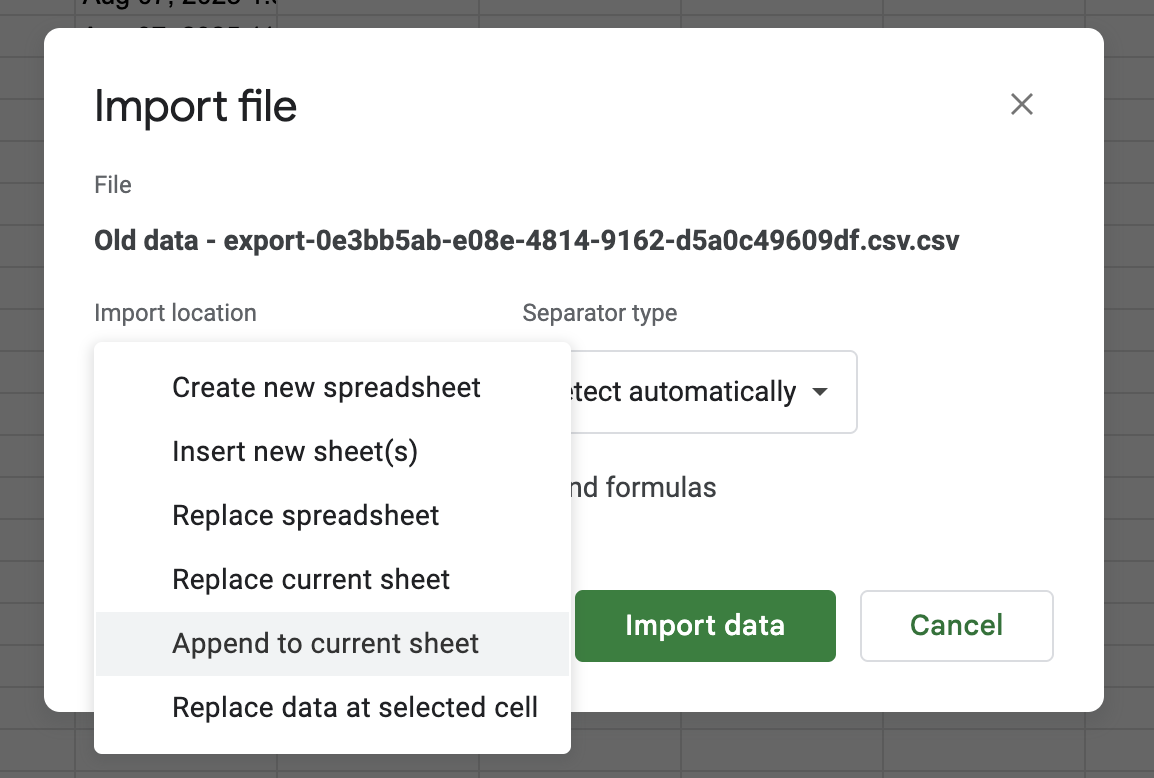
Once done, there will be an option to add this data to the current sheet. You need to choose "Append to current sheet" option
Done! All your previous data will be added to the sheet, and as your sheet is attached to the form, so the new data will also keep coming in.