

Google Sheets
Updated 2 months ago
Google Sheets syncs every form submission to a spreadsheet on your Google Drive. You can connect more than one Google account to your workspace and choose which account receives each form's submissions, so different forms can send data to different personal or team accounts.
Connect a Google account
Connecting Google Sheets authorizes a Google account for your workspace. The account is stored at the workspace level, so any form in the workspace can use it.
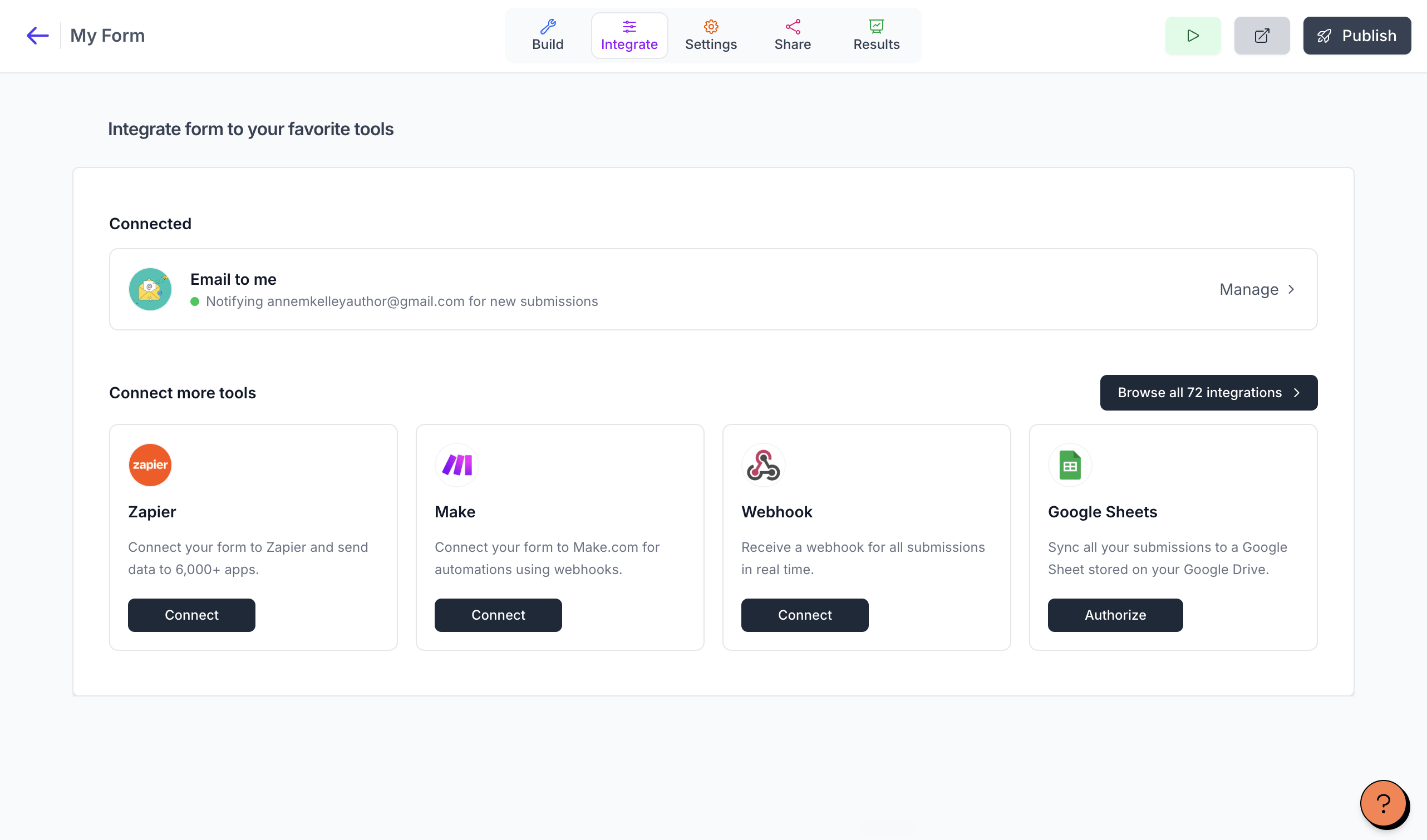
Open the form and go to its Integrate tab.
In the Google Sheets section, click Authorize.
In Google's window, choose the account you want to connect and grant access.
When the workspace has exactly one Google account and the form has no sheet yet, Youform sets up the spreadsheet automatically (shown as Setting up your sheet...).
Add another Google account
Add a second account when you want a form to send submissions to a different Google account than the one already connected.
Open the form and go to its Integrate tab.
In the Google Sheets section, click + Add another account.
In Google's window, choose the account and grant access.
The new account is added to the workspace and appears in the account selector on the form's Integrations page.
Choose the account for a form
When a form is not yet connected to a sheet, the Google Sheets section shows a Select a Google account dropdown with one option per workspace account, plus a Connect button.
Open the form and go to its Integrate tab.
In the Google Sheets section, open Select a Google account.
Choose the account that should receive this form's submissions.
Click Connect.
Youform creates a new spreadsheet in the selected account's Google Drive using the form's fields. The account chosen by default is the one already linked to the form, otherwise the current user's account, otherwise the most recently updated account.
Switch the account a form uses
The account selector is only shown while a form is not connected to a sheet. To send a connected form's submissions to a different account, disconnect the form first, then reconnect it with the different account.
Open the form and go to its Integrate tab.
In the Google Sheets section, click Disconnect and confirm.
The account selector appears again. Choose the other account and click Connect.
Reconnect when Google access is removed
When Google revokes access for a connected account, or the stored credentials stop working, Youform disconnects the account and every form using it, and emails the affected form owners so they can reconnect.
The email is titled Your Google Sheets integration was disconnected and lists each affected form with an open integrations link, plus the reason access was lost.
Open the affected form and go to its Integrate tab.
In the Google Sheets section, click Reauthorize Google account.
In Google's window, choose the account and grant access.
The form reconnects to its existing sheet. Your Google sheets are not deleted.
Disconnect a form or remove an account
Two separate actions control your Google Sheets connection: Disconnect removes a single form's connection, while Remove account removes a Google account from the workspace. Neither deletes your Google sheets.
Disconnect — removes only the current form's connection to its sheet. The Google account stays in the workspace and can be used by other forms. Confirmation reads: Do you want to disconnect with this sheet? Your Google sheet won't be deleted.
Remove account — removes the selected Google account from the workspace. Every form connected through it stops syncing to Google Sheets, and affected form owners are emailed. Confirmation reads: Remove this Google account from the workspace? All forms connected through it will stop syncing to Google Sheets. Your Google sheets won't be deleted.
Removing an account stops syncing for every form connected through it, but the Google sheets themselves are never deleted.