

The system may not support AI translation for large forms with many fields. Use manual translation instead: download the CSV template from the manual translation pop-up, use an AI tool like ChatGPT or Claude to fill in the translated messages, then upload the file back to Youform.
How to add multiple languages in Youform?
Updated 3 months ago
Multilingual support is available in Youform Pro only. If you just need your form in a single language other than English, you can change the default language in the Free plan as well.
Youform supports 40+ languages: Azerbaijani, Bulgarian, Catalan, Chinese (Simplified), Chinese (Traditional), Croatian, Czech, Danish, Dutch, English, Estonian, Filipino, Finnish, French, German, Greek, Hindi, Indonesian, Italian, Japanese, Kazakh, Korean, Polish, Portuguese, Portuguese (Brazil), Romanian, Russian, Serbian, Slovak, Slovenian, Spanish, Spanish (Mexico), Swedish, Thai, Turkish, Ukrainian, and Vietnamese.
Adding multiple languages to your form
Navigate to your form and open the Settings page.
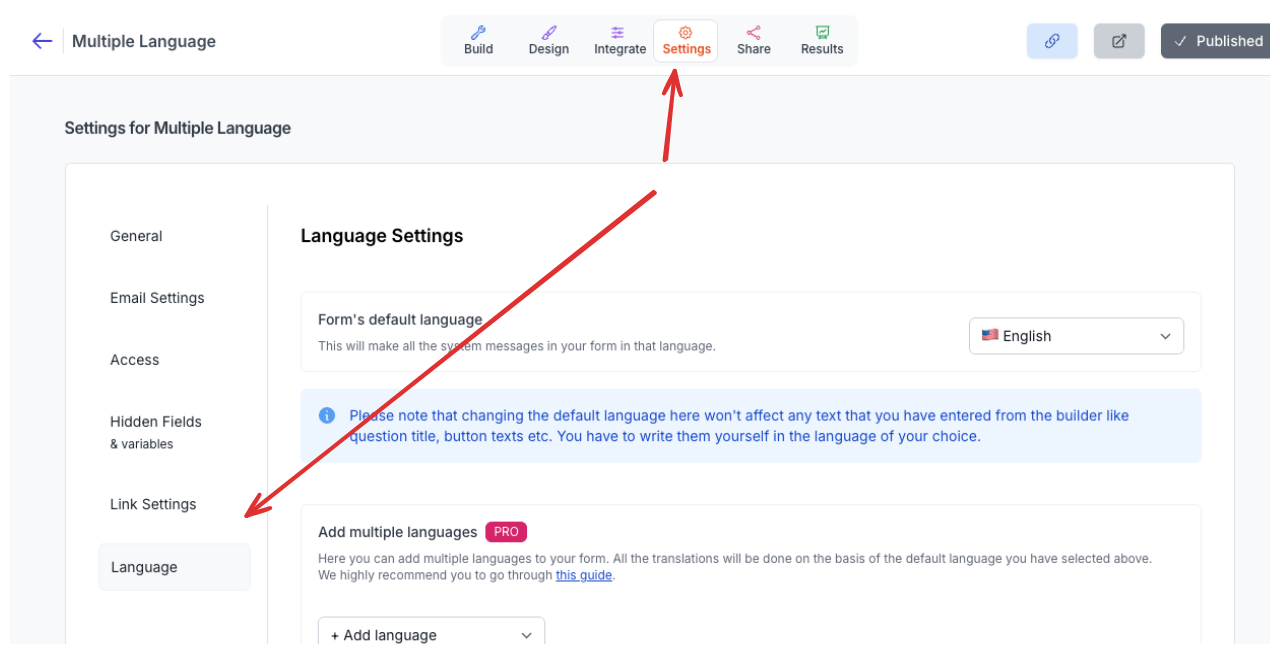
On the left side, select Language to reach the language settings page.
Add the languages you need.
Once added, each language shows a status of "Translation needed".
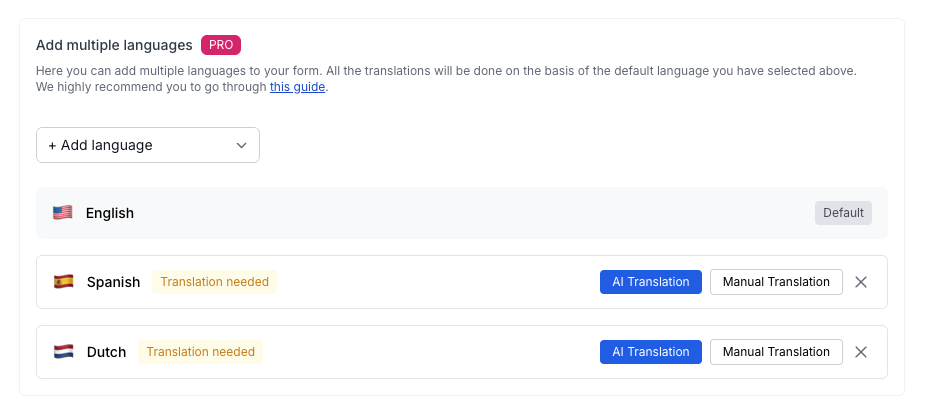
There are two translation options available:
AI Translation: Sends the form structure (not submission data) to third-party software for translation.
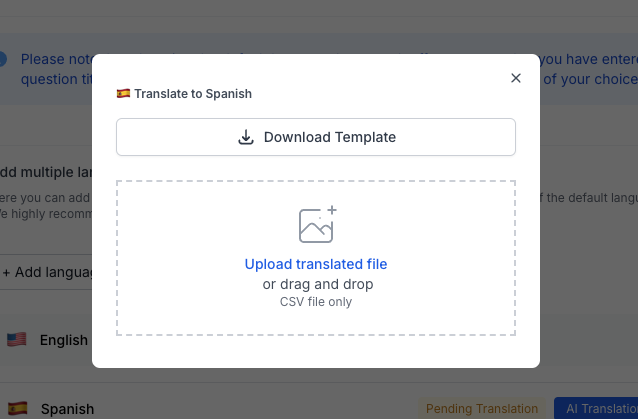
Manual Translation: Click to open a pop-up where you can download a CSV template.
Open the CSV in a spreadsheet tool like Google Sheets.
Edit only the third column (your language). Do not alter the first two columns or remove any empty lines.
Download the CSV and upload it back to Youform to apply the translations.
Testing your multilingual form
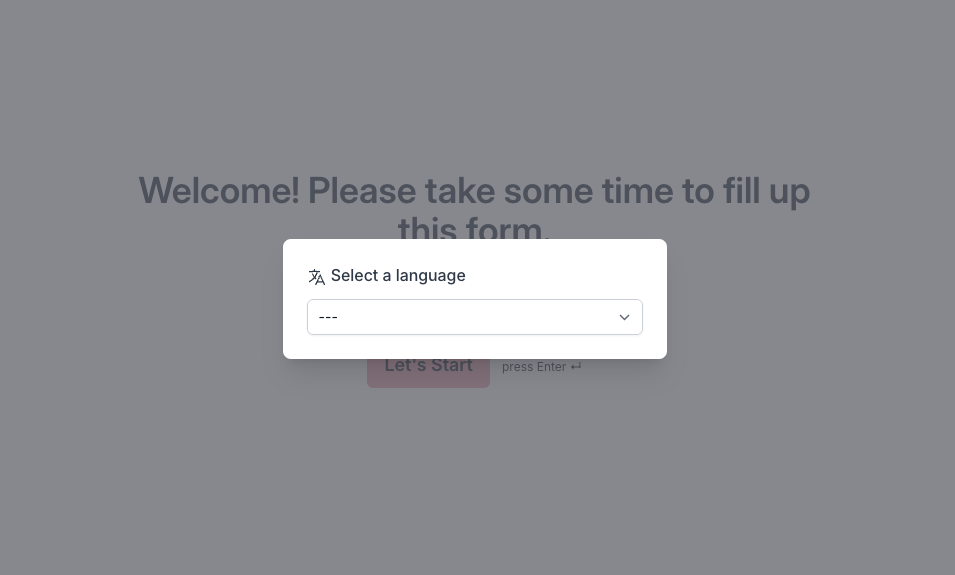
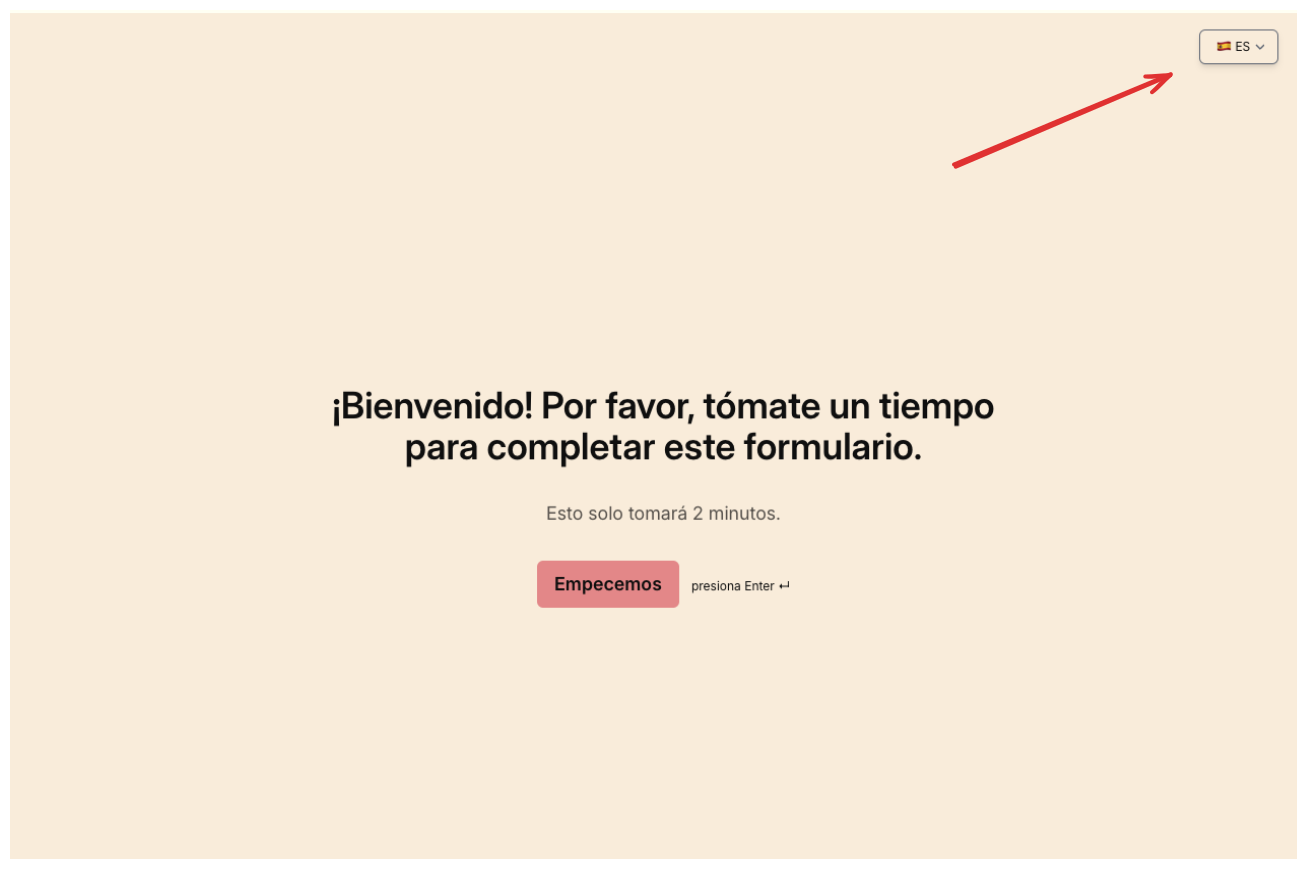
After completing all translations, publish your form and open it to test. It will prompt you to select a language on first open. After selection, the form displays in your chosen language. If a language is selected by mistake, change it via the dropdown at the top right.
If AI translations are incorrect
AI translations may occasionally produce incorrect results. Test all languages you have added, and if needed, use a hybrid approach:
Run the AI translation.
Download the template via the Manual Translation button.
Correct the translated messages.
Upload the corrected file using the Manual Translation button.
Troubleshooting AI form translation
AI translation fails on a form with many fields
Translation fails repeatedly
Try again, or contact [email protected].
Was this helpful?
Was this helpful?