

Google Tag Manager in Youform
Updated 3 months ago
You can now add GTM to your forms in Youform.
Please make sure you have a GTM account and a Youform PRO plan .
Steps to add GTM in Youform
1. Pick your GTM id from your Google Tag Manager dashboard.
It should look like GTM-XXXXXXX

2. Go to your Form in Youform and then go to "Integration" tab. You will find the GTM integration connect button
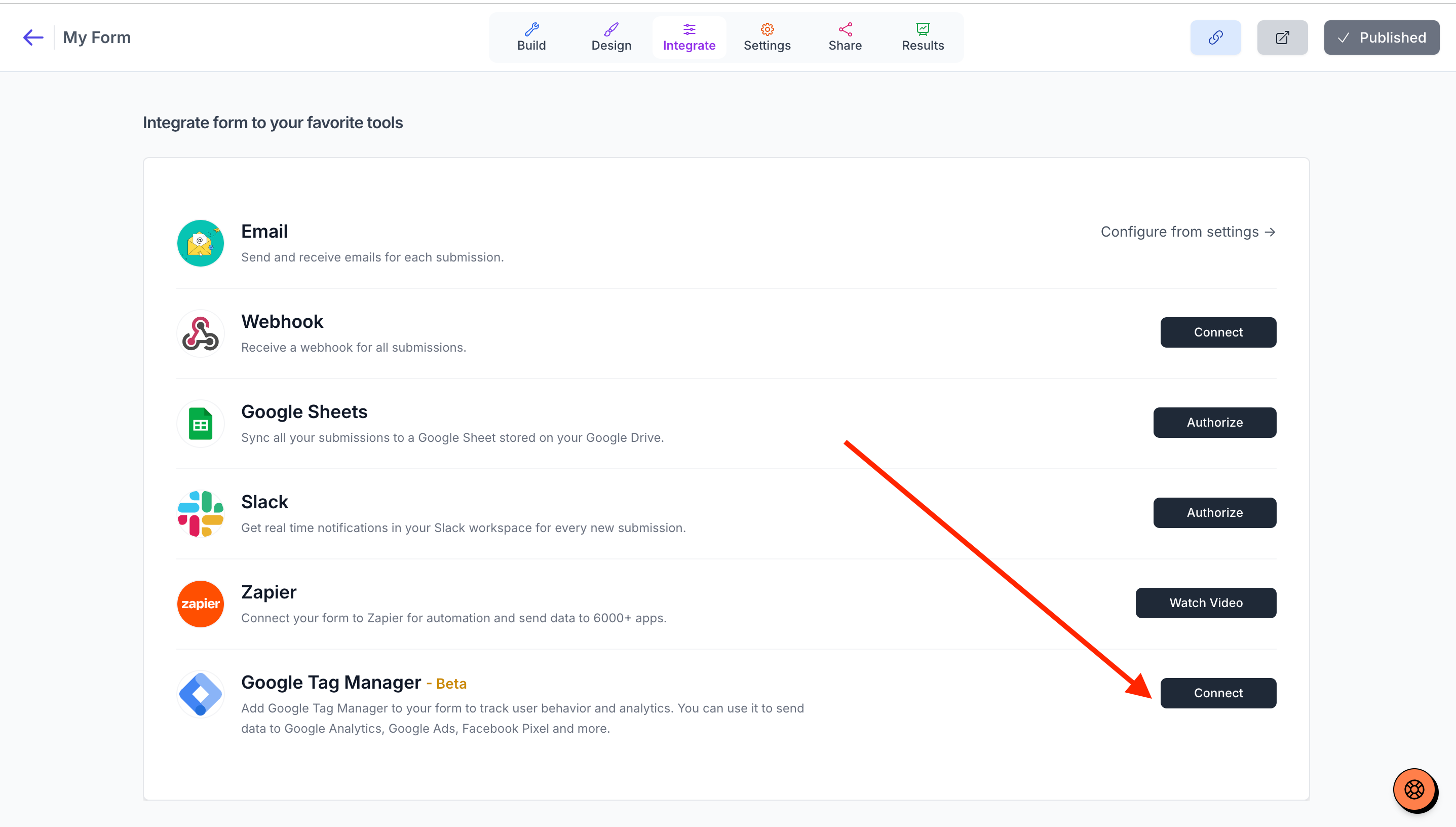
3. Click the connect button. A modal will open. Paste your GTM ID in the input box.
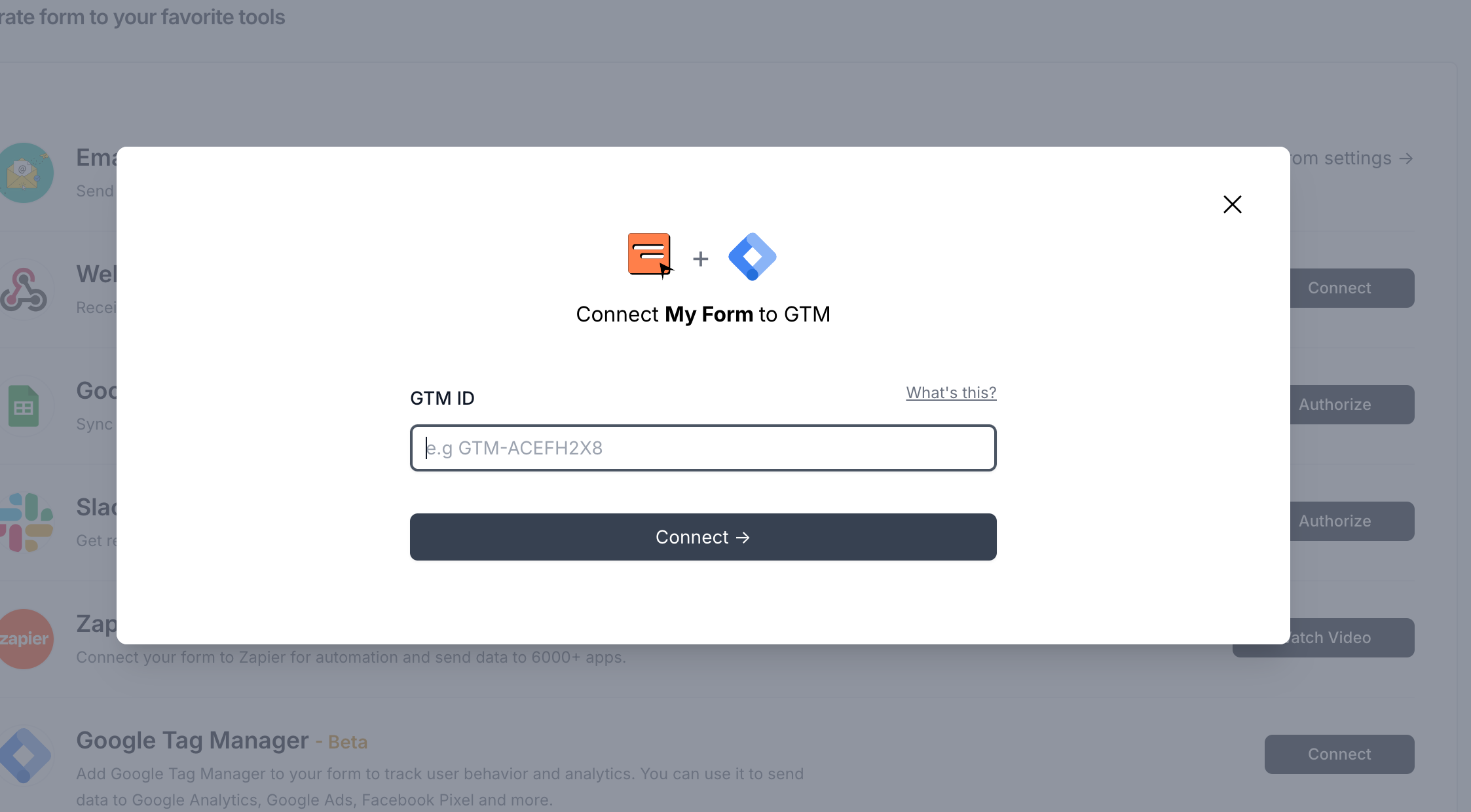
Now all your form events will be sent to your GTM account.
We send the following events:
1. formViewed - (data sent: formId)
2. formBlockViewed - (data sent: formId, blockId, question type and question title)
3. formFillupStarted - (data sent: formId)
4. formSubmitted - (data sent: formId)
You can now attach Google analytics, Meta (Facebook) Pixel, TikTok Pixel etc to your forms. Check this help article for How to connect Meta pixel to Youform.
Troubleshooting Guide: Fixing GTM Integration Issues
Please make sure:
There is no Ad Blocker installed in your browser. If it's there, either pause it or try with another browser or incognito tab.
Check if GTM Assistant plugin is installed.
Check cookies are accepted. Make sure you are not blocking cookies.
Check if there is any custom code or duplicate form id.