

Forms with QR code support
Updated 3 months ago
Youform provides an option to share your forms using QR codes.
To get a QR code for your form, follow these steps:
Go to your form.
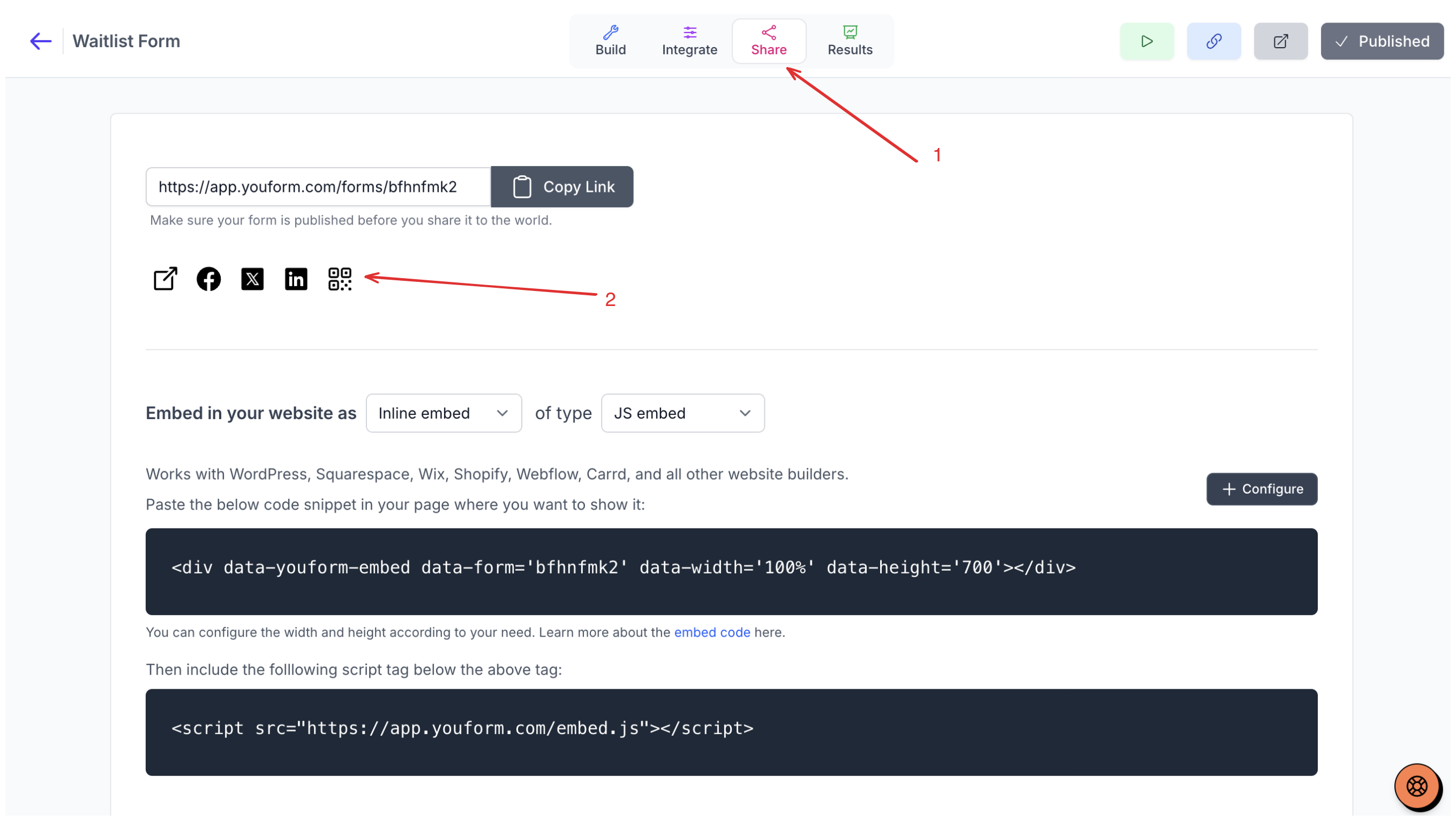
In the builder navigation, select Share.
On the Share link tab (selected by default), select the QR-code icon, identified by the Get QR Code tooltip.
Wait for the QR code to generate, then select Download.
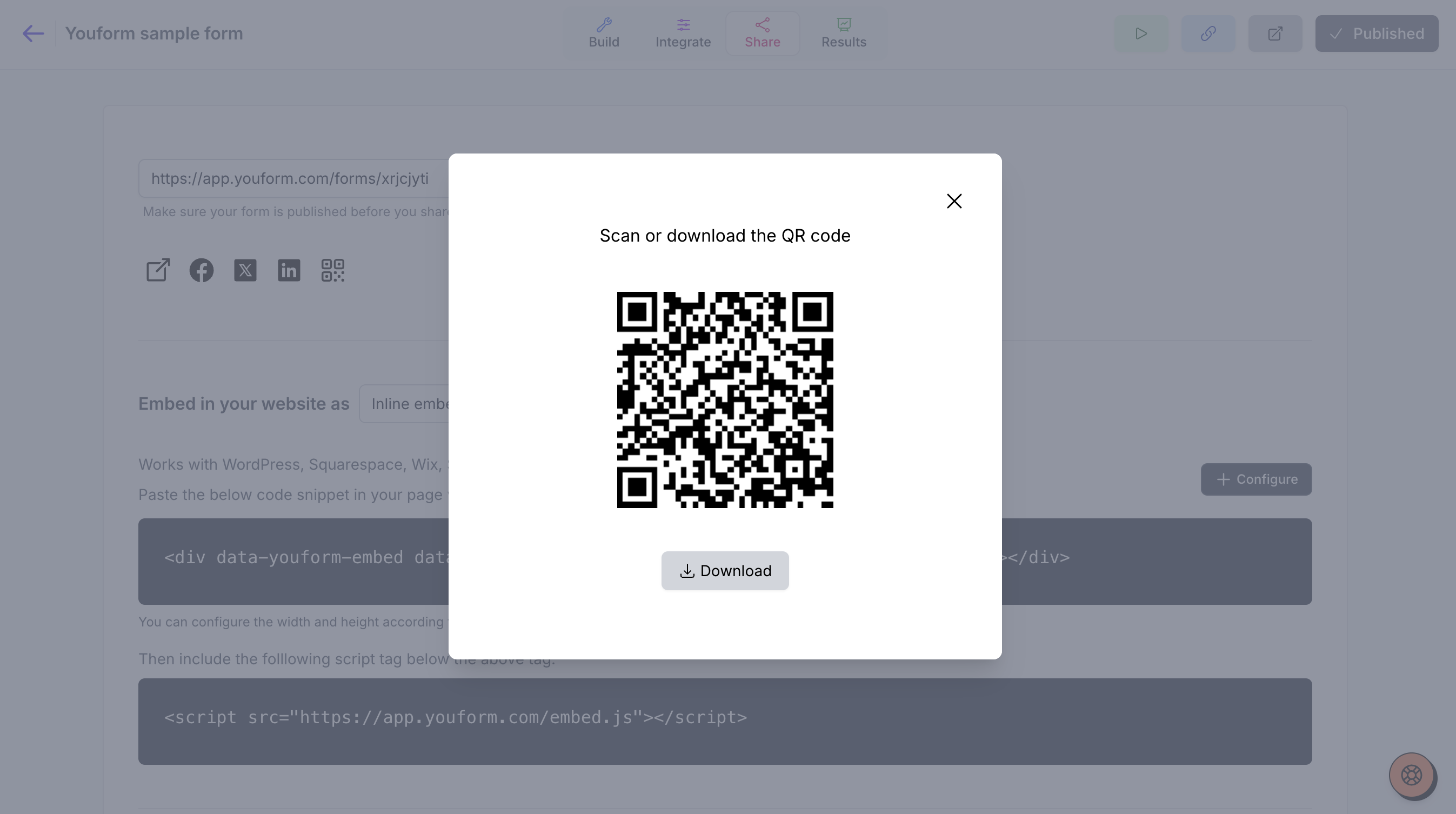
The download saves a PNG file named after your form (the form name with .png added), at 200 × 200 pixels. The QR code points to your form's public page URL.
Use the PNG anywhere you would share a printed link: flyers, posters, packaging, event materials, or other offline sharing. People scan it with their phone camera to open your form without typing a URL.
Your form must be published before the QR code option appears. If you see a publish notice on the Share page, publish your form first, then return to the Share link tab.
Do I get analytics for the form's QR-code scan?
Youform provides form analytics, which includes:
Form opens
Starts
Submissions
Completion rate
Question-by-question drop-off rate
You can equate form open numbers in analytics to the QR-code scans. For more details, see Form analytics and drop-off rate .