How to send emails from my Gmail account?
Updated 3 months ago
In Youform, we provide a custom SMTP feature using which you can send emails to your form responders using your own email address. This guide tells you how to use your Gmail account in your custom SMTP.
Here is a simple step to enable SMTP using your Gmail account in Youform:
Enable 2-Step Verification on your Google Account :
https://myaccount.google.com/security
Generate an App Password:
Go to App passwords page (only visible if 2FA is enabled).
https://myaccount.google.com/apppasswords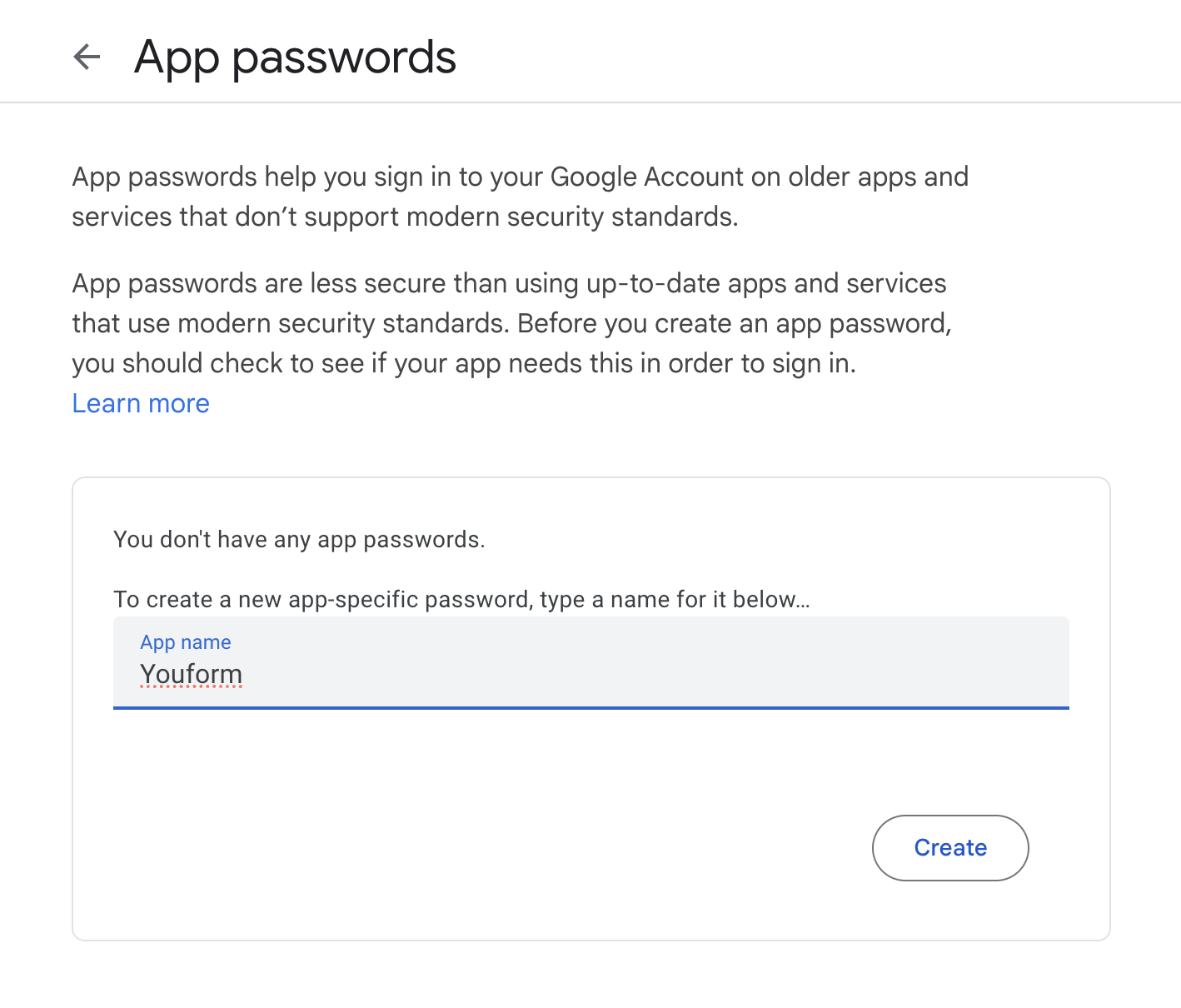
Google will give you a 16-character password.
Use that password as your 📪SMTP password in Youform
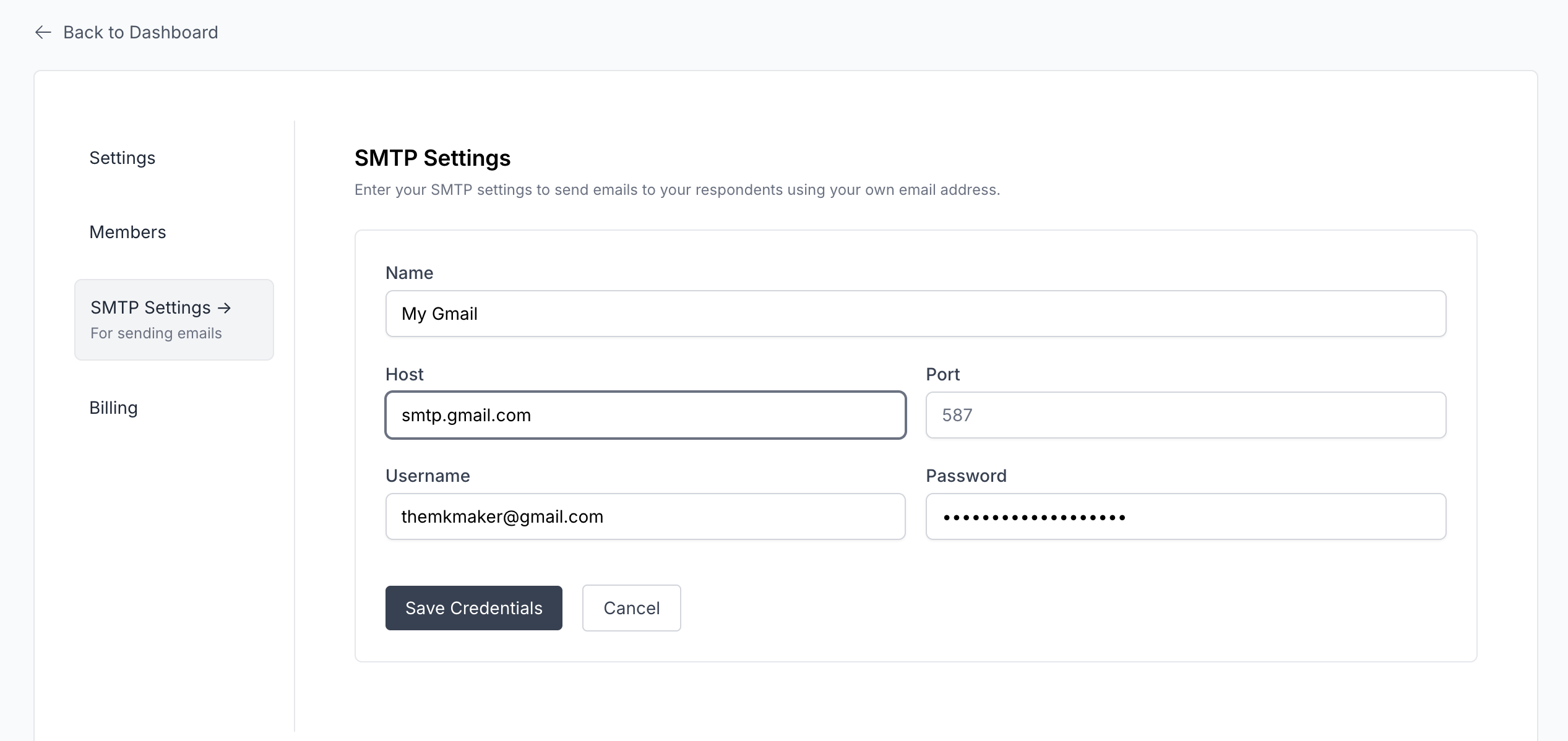
Go to Youform dashboard → Organisation from top left button and open smtp settings page.
Put the following details:
Name: "My Gmail" (or anything by which you can identify it. No rules here).
Host: smtp.gmail.com
Port: keep it empty
Username: Your Gmail id
Password: The password you just generated from the App Password page above.Once saved it will ask you to add sender email. Remember for Gmail you should add only one address here and that is the gmail address for which you have generated the app password. Otherwise your email sending won't work.