

Collect video and audio answers
Updated today
Add a Video & Audio question to ask respondents to record a video or audio answer, or upload a recording file. The block is available on the Business plan, and you review and download the answers from the Results tab.
Plan availability
The Video & Audio block requires the Business plan. On the Free and Pro plans you cannot add the block or use its video and audio options. If a form that already contains the block is used on the Free or Pro plan, respondents see a Text option instead of the Video and Audio choices.
Add the block
You add a Video & Audio question from the builder like any other block.
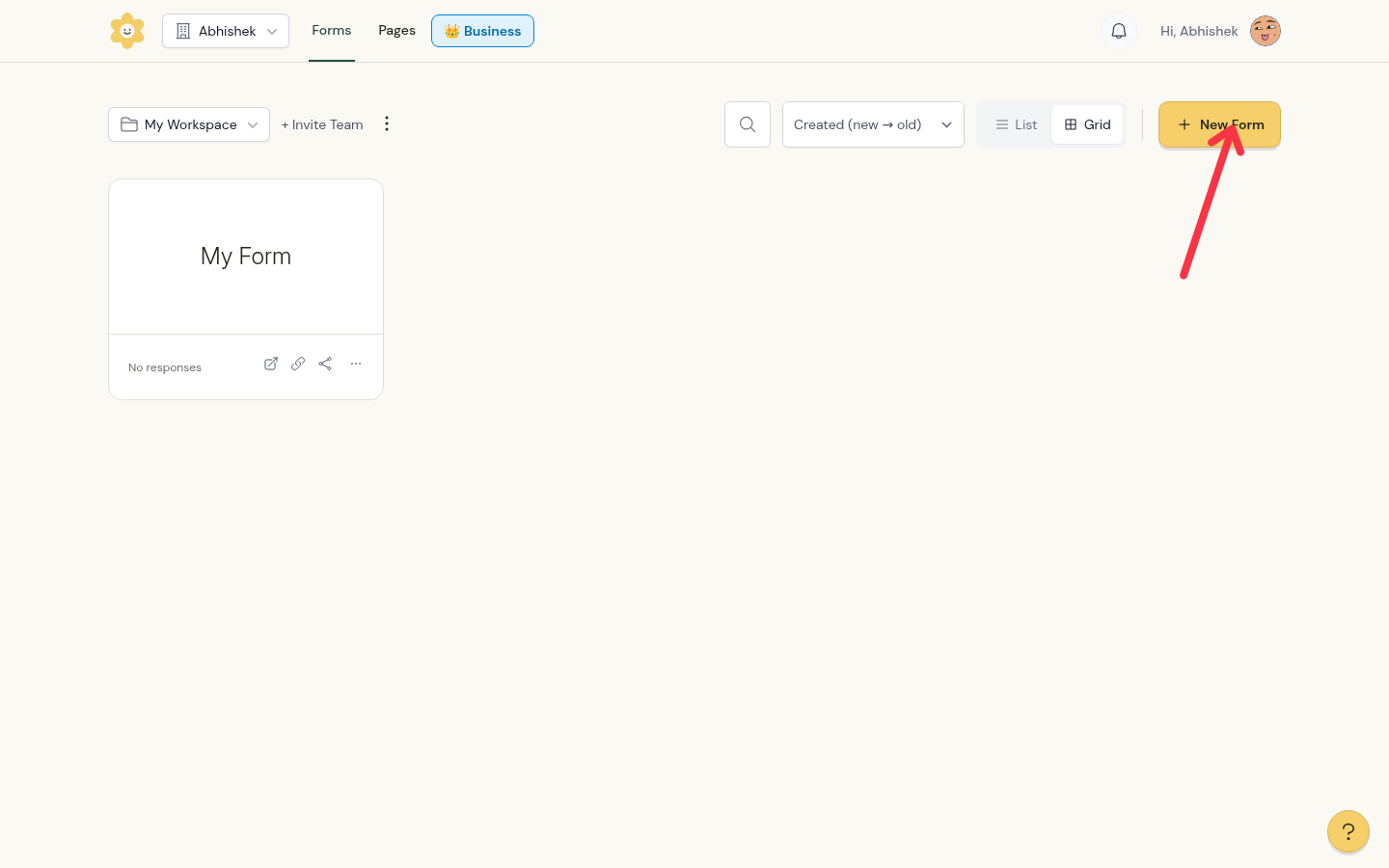
On the Forms page, click New Form.
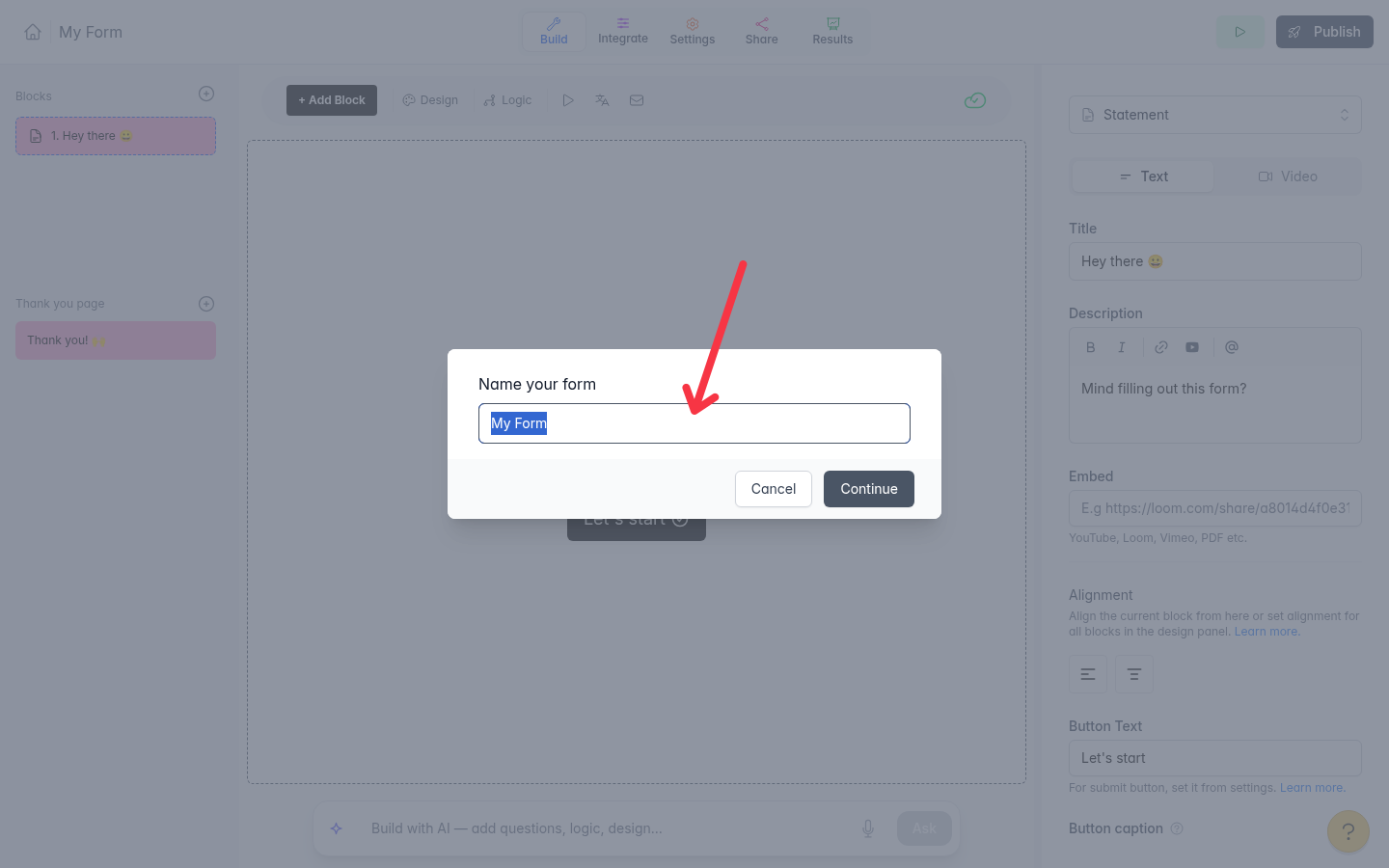
The Forms dashboard Enter a name for the form and select Continue. The builder opens with a default welcome statement.
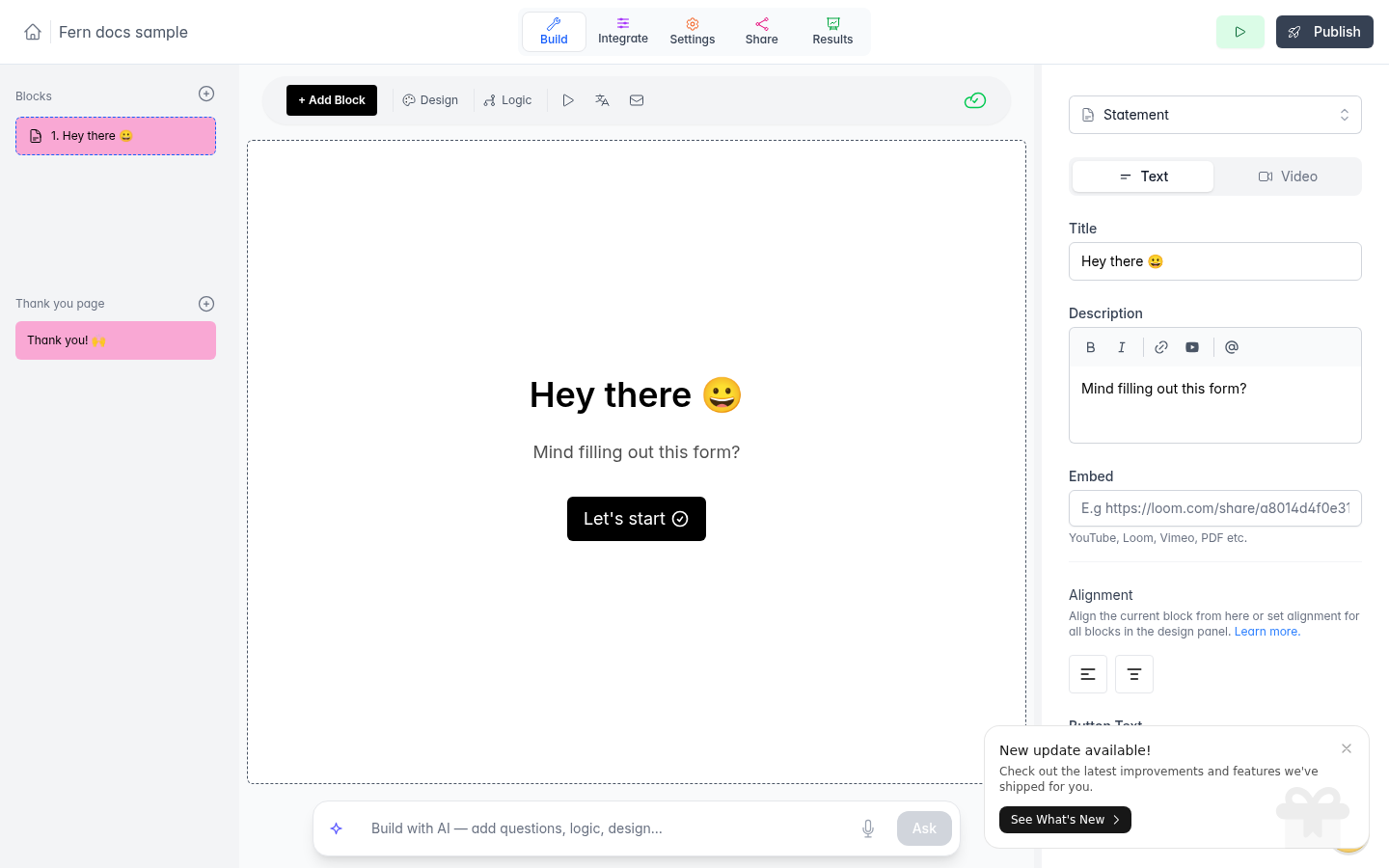
The Name your form dialog Click + Add Block.
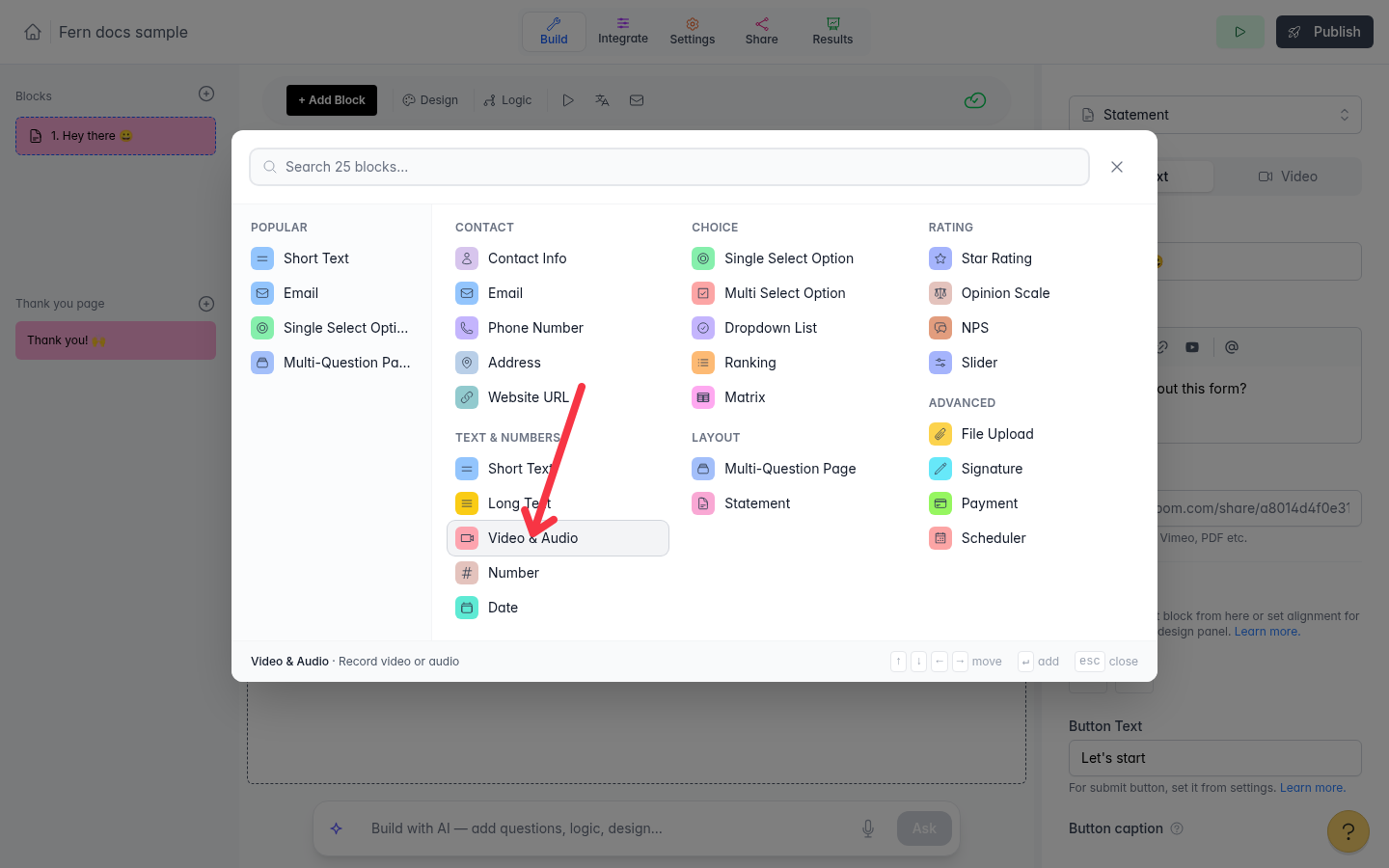
The builder In the block picker, under Text & numbers, select Video & Audio (the hint reads "Record video or audio").
The block picker The question is added with the default text "Record your answer". In the right panel, edit the Question, Description, and Button Text fields.
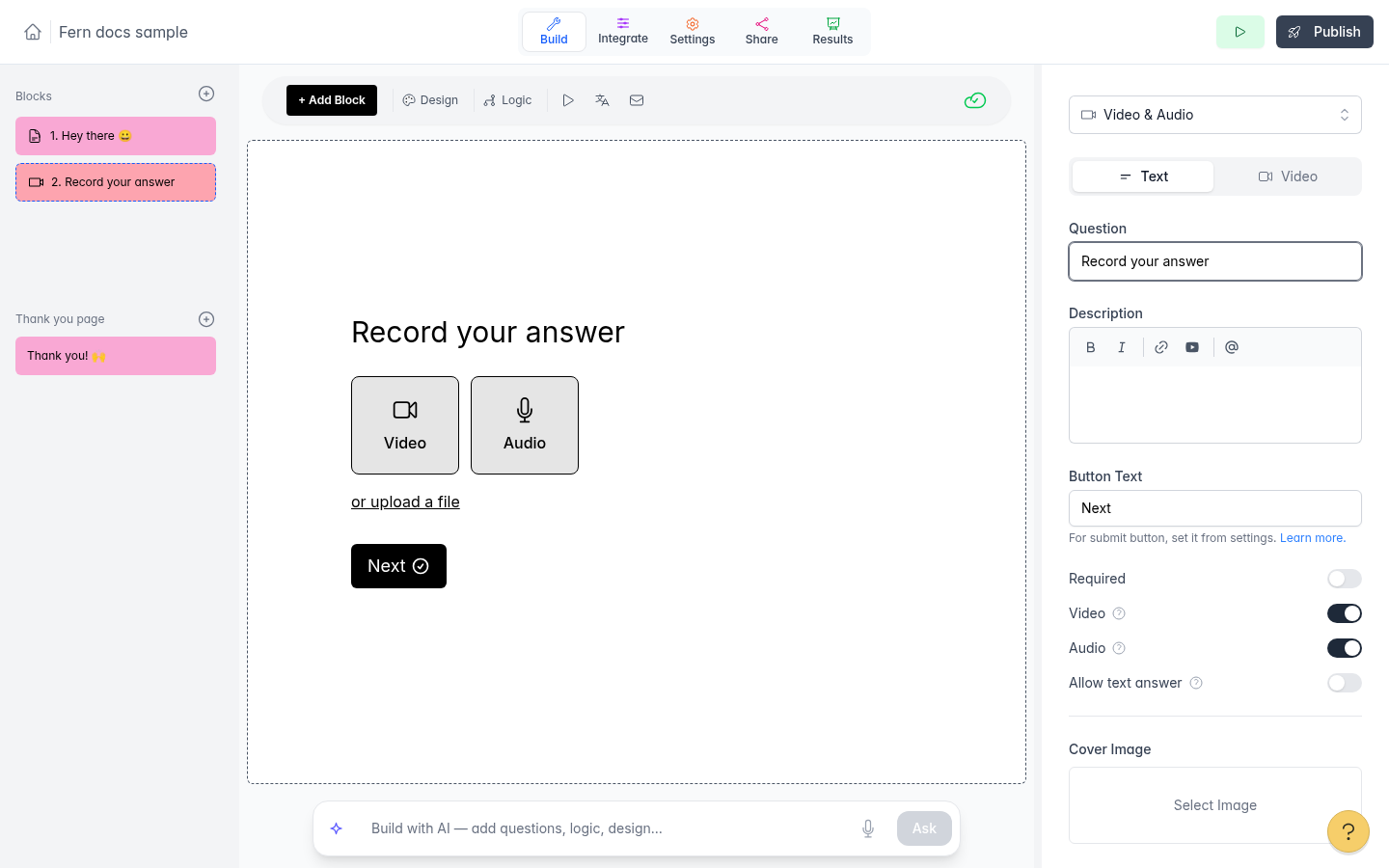
The Video & Audio block and its settings
The Video & Audio block cannot be added to a multi-question page.
Choose what respondents can answer with
The Video and Audio switches in the right panel work independently, and both are on by default. Turn one off to remove that choice from the live form. Turn on Required to make an answer mandatory. Turn on Allow text answer to also let respondents type their answer; you can then set Custom placeholder text for the text field.
What respondents see
Respondents choose between the enabled Video and Audio options, and can select or upload a file to attach a recording instead of recording live. Choosing Video or Audio opens the recording screen: they pick the camera or microphone, select Start recording, and the recording begins after a short countdown. They can select Retry to record again or Use this recording to keep it. While the file uploads, the screen shows Uploading….
File formats and limits
Recordings and uploaded files must meet these limits. The same limits apply to video and audio.
Type | Accepted formats | Maximum size | Maximum length |
|---|---|---|---|
Video | .mp4, .mov, .webm, .m4v | 500 MB | 5 minutes |
Audio | .mp3, .wav, .m4a, .webm, .ogg, .aac, .mp4 | 500 MB | 5 minutes |
Review the answers
On the Results tab, video and audio answers appear in the submissions table as Video recording or Audio recording. Open the submission to play the recording in the player, download it with Download, and read its Transcript. Transcripts appear when speech is detected in the recording; typed answers display as text.
Video & Audio answers are not included in the Summary view.
Duplicating a form
When you duplicate a form, the copy gets its own copies of the videos and poster images attached to its questions. Respondent recordings are not copied, because duplicating a form does not copy its submissions.