

Facebook Pixel Integration with Youform
Updated 3 months ago
Track your form conversions and build custom audiences for Facebook and Instagram ads using Meta Pixel (formerly Facebook Pixel).
This is a Youform PRO feature.
What is Facebook Pixel?
Facebook Pixel is a piece of code that tracks visitor actions on your forms. With this integration, you can:
Track conversions - See how many form submissions come from your Facebook/Instagram ads
Optimize ad delivery - Facebook automatically shows your ads to people most likely to submit your form
Build custom audiences - Retarget people who viewed or submitted your form
Create lookalike audiences - Find new customers similar to your form submitters
Getting Your Pixel ID
If you don't have a pixel id already then:
Go to Facebook Events Manager
Click Connect Data Sources and select Web
Select Meta Pixel and click Connect
Enter a name for your Pixel and click Create Pixel
Copy your Pixel ID (a 15-16 digit number like
1234567890123456)
If you already have a Pixel, find your ID in Events Manager → Data Sources → Select your Pixel → Settings.
Connecting Facebook Pixel to Your Form
Open your form in Youform
Go to Integrations
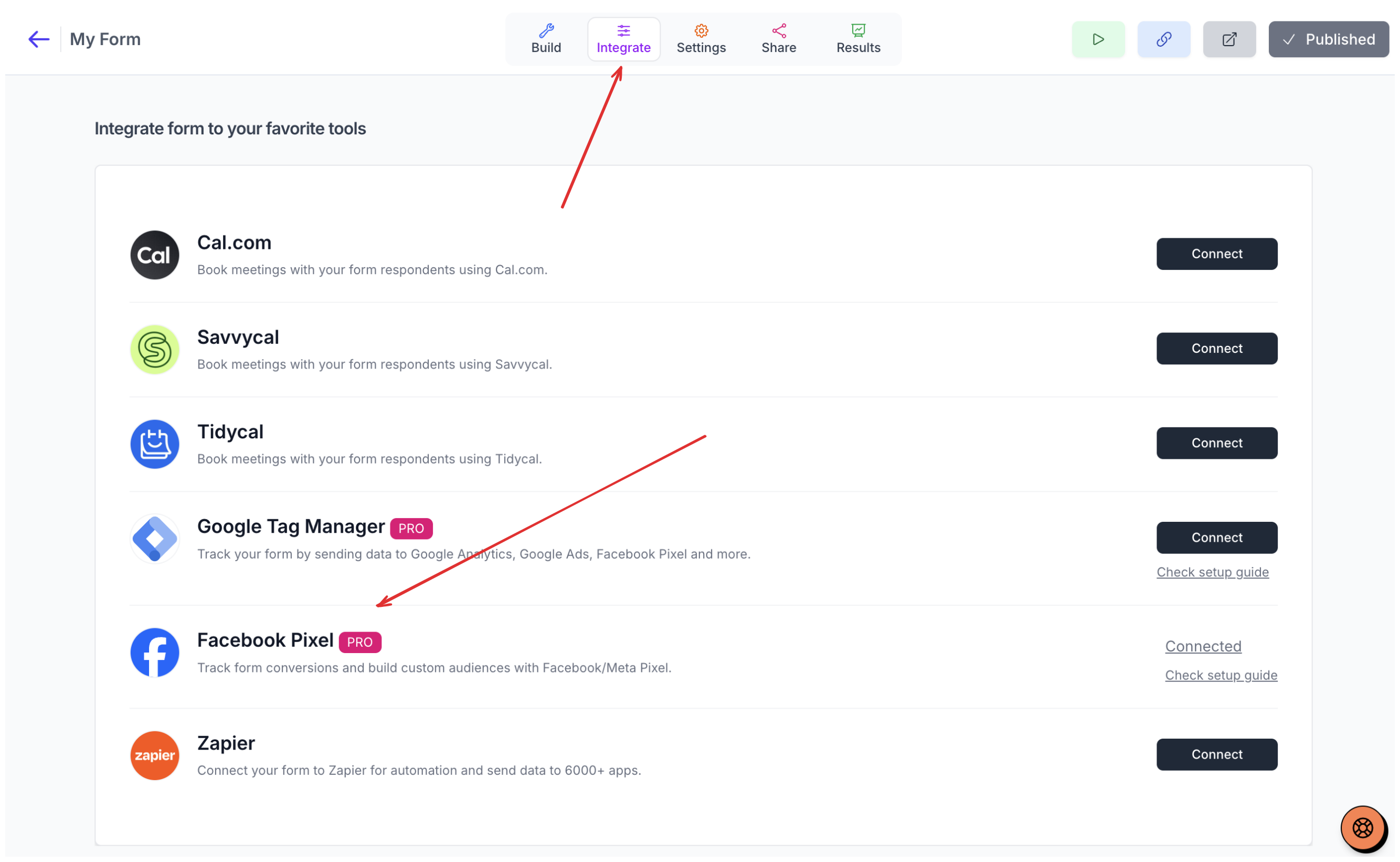
Find Facebook Pixel and click Connect
Paste your Pixel ID
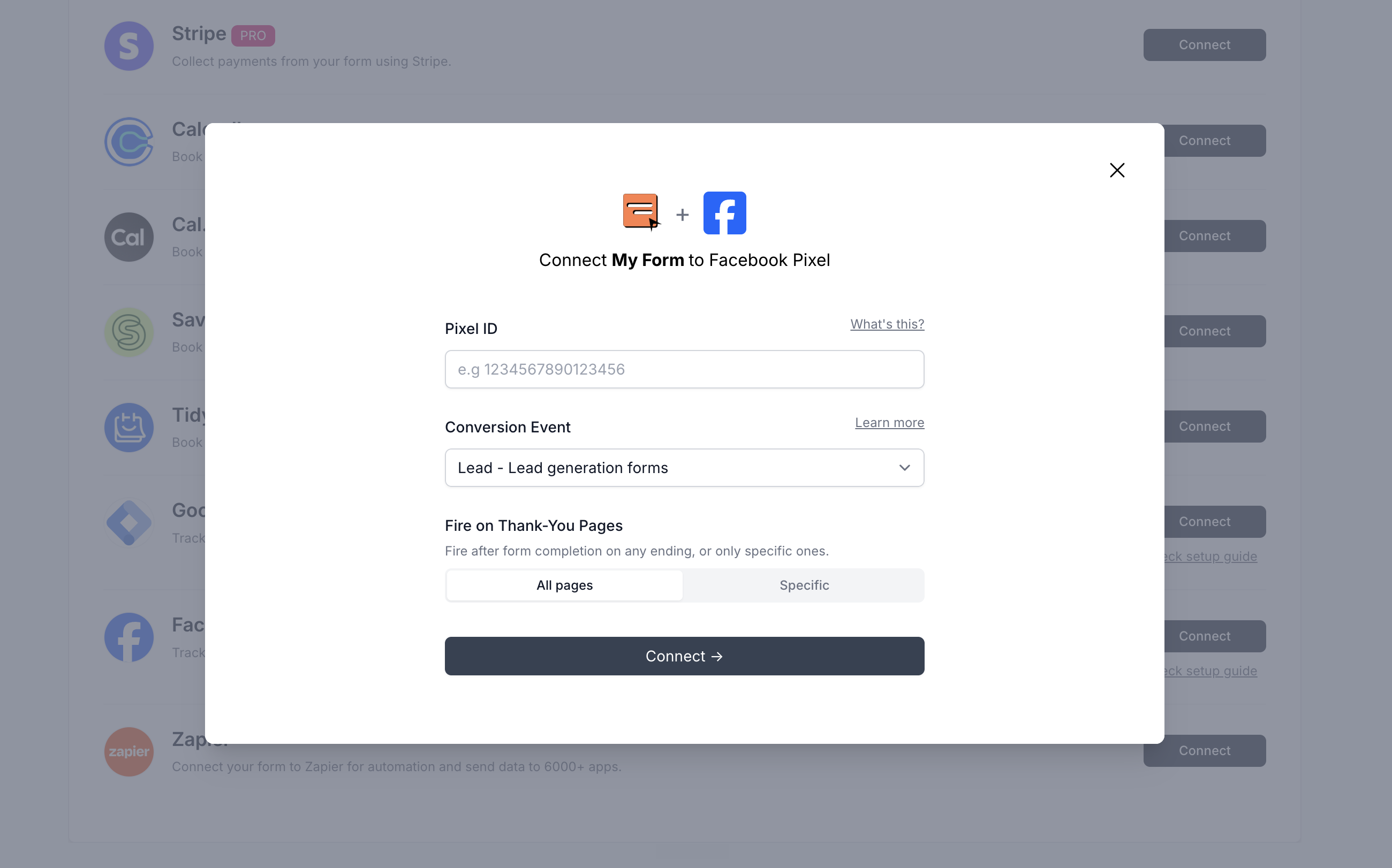
Select your Conversion Event (see table below)
By default the event will be fired for all completion paths. If you want it to fire on specific thank-you pages you can select them.
Click Connect
That's it! Your form will now track events in Facebook.

Make sure you check the troubleshoot section below if you are facing issues.
Conversion Events
Choose the event that best matches your form's purpose:
Event | Best For | Example |
|---|---|---|
Lead (default) | Lead generation, inquiries, quote requests | Contact forms, demo requests |
Complete Registration | Signups, account creation | Registration forms, waitlists |
Purchase | Payments, orders | Checkout forms, order forms |
Contact | Contact requests | Contact us forms |
Submit Application | Applications, submissions | Job applications, program applications |
Subscribe | Newsletter, subscriptions | Email signup forms |
Custom | Specific tracking needs | Any custom event name |
Which event should I choose?
Choose based on what happens after someone submits your form:
Someone wants to buy from you? → Lead
Someone is signing up for an account? → Complete Registration
Someone is paying you? → Purchase
Someone just wants to contact you? → Contact
Someone is applying for something? → Submit Application
Someone is subscribing to updates? → Subscribe
Custom Events
If the standard events don't fit your needs, you can create a custom event:
Select Custom event from the dropdown
Enter your event name (e.g.,
FormSubmitted,QuoteRequest)Use only letters, numbers, and underscores
Important: Custom events require additional setup in Facebook:
Go to Facebook Events Manager
Click Custom Conversions in the left sidebar
Click Create Custom Conversion
Select your Pixel
Under "Event", choose your custom event name
Give it a name and select a category
Click Create
Now you can use your custom event for ad optimization.
Events Tracked
When someone interacts with your form, these events are sent to Facebook:
Action | Facebook Event |
|---|---|
Form loads |
|
Question viewed |
|
Form submitted | Your selected conversion event (automatic if not custom event) |
Verifying Your Setup
To test your Facebook pixel integration follow this:
Using Meta Pixel Helper
Install the Meta Pixel Helper Chrome extension
Open your form
Click the Pixel Helper icon - you should see a green checkmark
Submit a test entry
Check that your conversion event appears
Using Facebook Events Manager
Go to Events Manager
Select your Pixel
Click Test Events
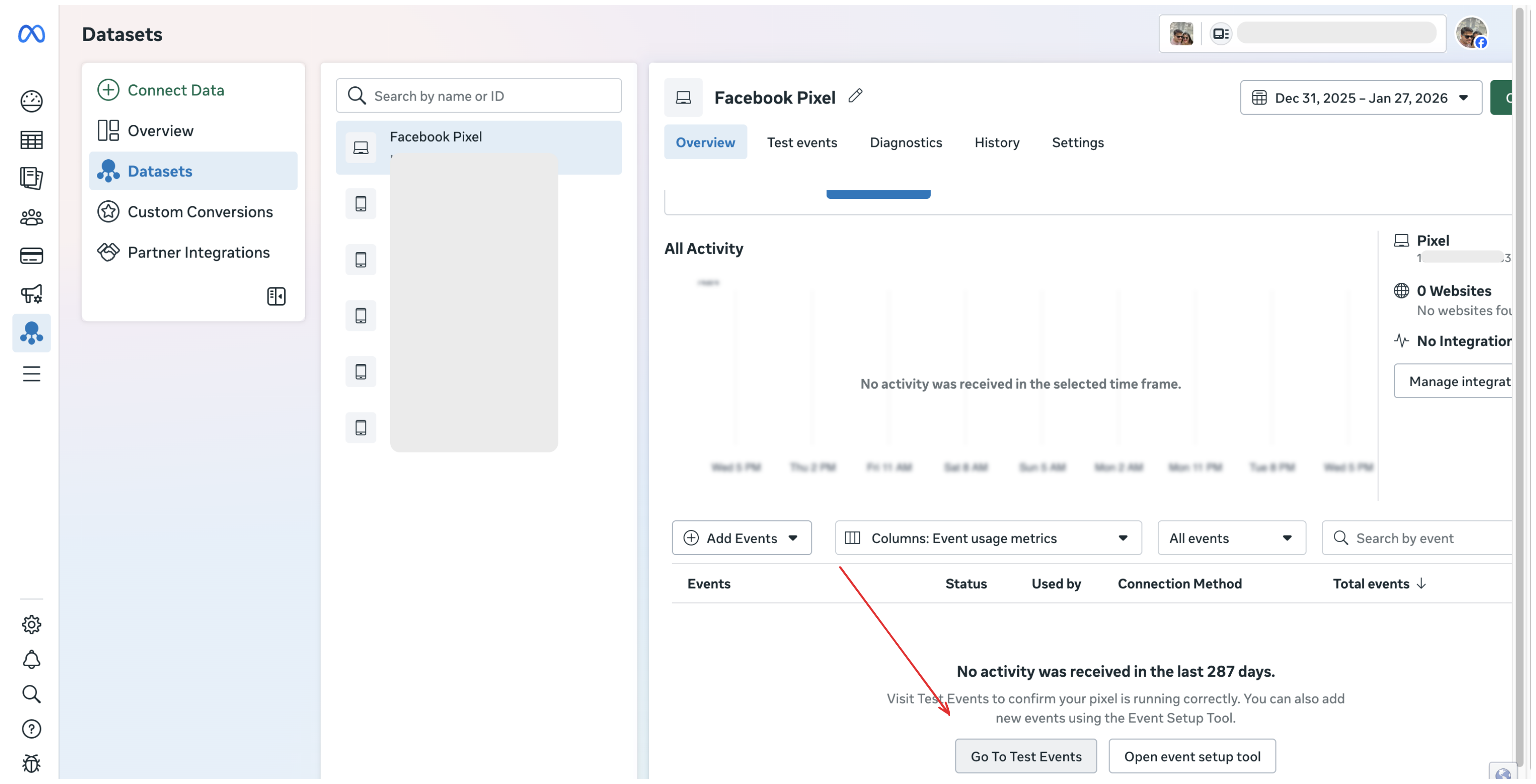
Open your form in a new tab
Submit a test entry
Events should appear in the Test Events panel within seconds
Troubleshooting
Events not showing up?
Wait a few minutes - Events can take up to 24 hours to appear in Events Manager (usually much faster)
Check your Pixel ID - Make sure it's exactly 15-16 digits with no spaces
Disable ad blockers - Browser extensions like uBlock Origin can block the Pixel
Check Do Not Track - Some browsers block tracking by default. Ideally use Chrome in incognito mode for testing.
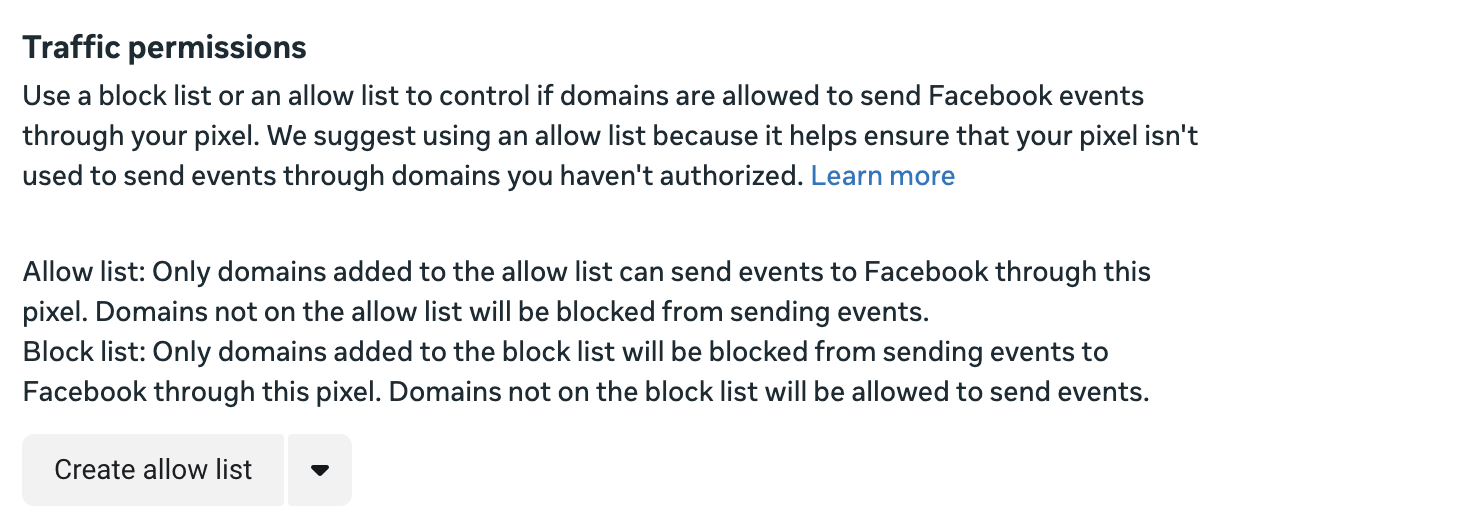
Check if you have domain whitelist/blocklist - Quick Fix: Allow Youform's domain in your Meta allow list.
Go to Meta Events Manager → Data Sources → select your Pixel.
Open Settings → scroll to Traffic permissions.
Check Allow List and add:
Your website’s domain (if the form is embedded), or
youform.com(if using a Youform hosted link), andCustom domain (if any) used for your form.
Add only the domain (no
https://or paths)Save and re-test with Test Events or Meta Pixel Helper.
Pixel Helper shows errors?
No Pixel found - The Pixel ID might be incorrect
Pixel did not load - Try refreshing the page (hard reload)
Events tracked but not in reports?
Events in Test Events are real-time but don't appear in main reports
Main reports update every few hours
Make sure you're looking at the correct date range
Lead is firing even when person is not qualified
For this please add conditional logic in your form to redirect to separate thank-you pages for qualified and non-qualified leads and then from the Integrate → Meta pixel → set it to fire only on the desired thank-you pages.
Using Your Data for Ads
Once events are tracked, you can:
Create a Custom Audience
Go to Audiences in Ads Manager
Create a Custom Audience → Website
Select people who triggered your conversion event
Optimize Ad Delivery
When creating an ad, choose Conversions as your objective
Select your Pixel
Choose your conversion event
Facebook will show ads to people most likely to convert
Track Conversions
In Ads Manager, add the Results column
Select your conversion event
See how many conversions each ad generated
Requirements
Facebook Pixel integration requires a Youform Pro plan
You need a Facebook Business account and access to Events Manager
Need Help?
If you're having trouble with your Facebook Pixel integration, contact us at [email protected]