

Notion integration
Updated 3 months ago
Youform provides an easy Notion integration for your forms. This is powerful integration using which you can sync all your form submissions to your Notion database, map your form fields with your Notion database fields, easily search and filter your submissions with Notion's in-built search & filter options. You can also connect multiple forms with single Notion database as well.
TLDR; you really don't need to follow this guide. Just head over to integrations page of your form and the process is very intuitive.
How to connect Youform to Notion?
You can connect your Youform with your Notion database. Follow these steps:
Go to your Youform dashboard.
Click on the form you want to connect to Notion.
Navigate to the integration page.
Find the Notion integration option.
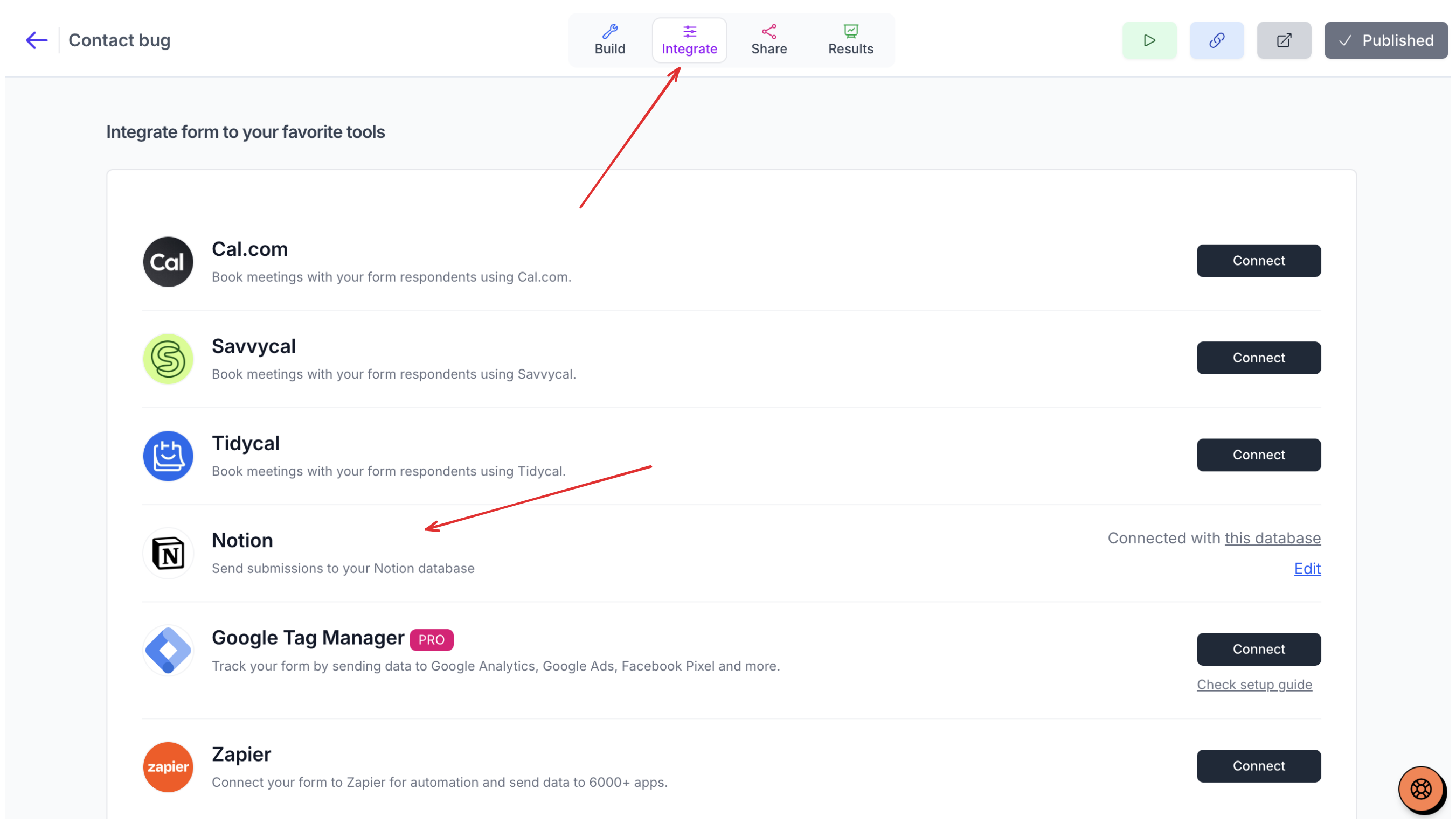
Connect Youform to Notion
Click on the connect button to connect your Notion account to Youform.
Make sure you provide access to the pages which you want to connect.
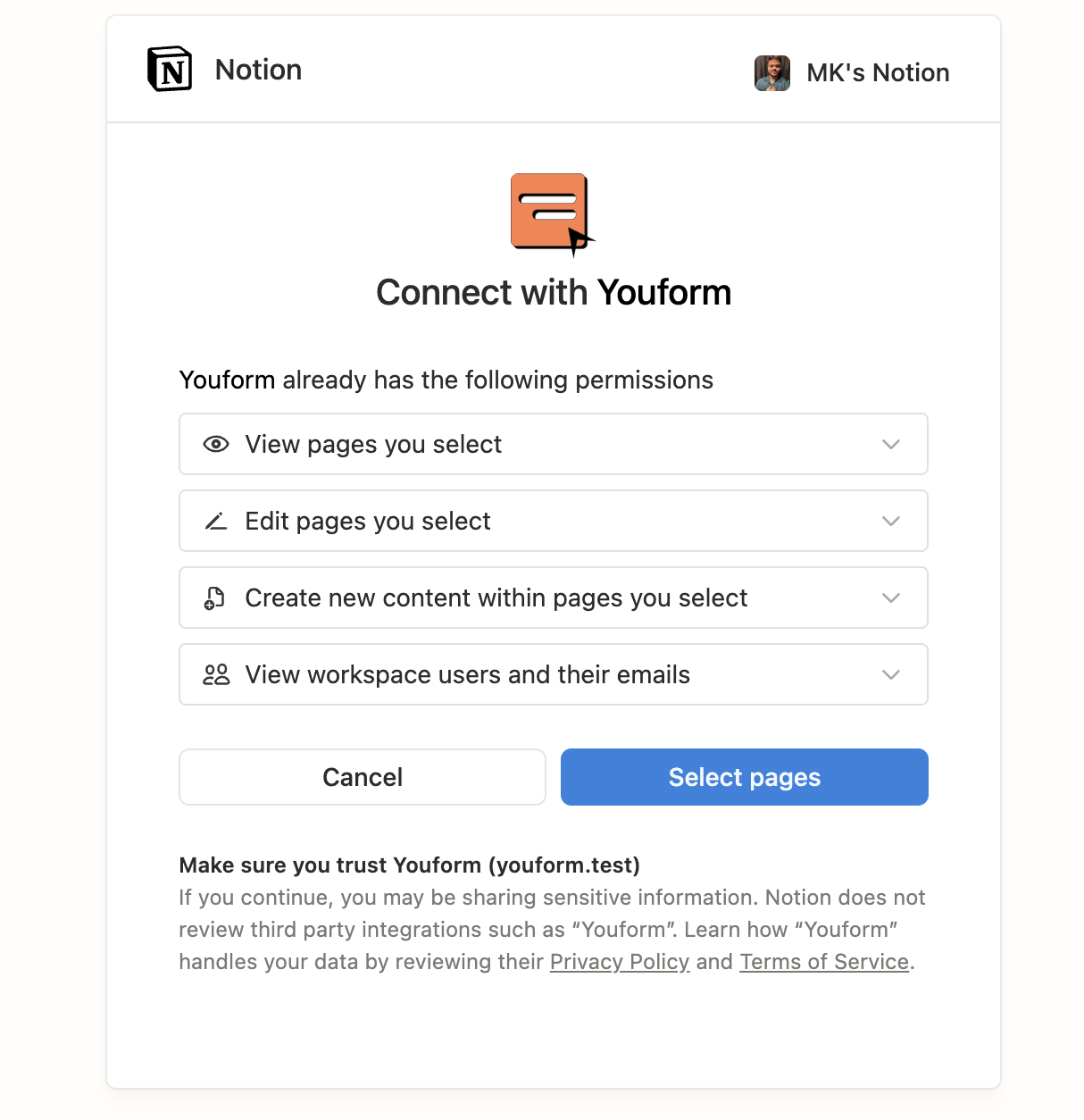
After coming back to Youform, select the databases you want to connect to this form.
If you already had submissions in this form then enable the switch beside "Export existing submissions" option.
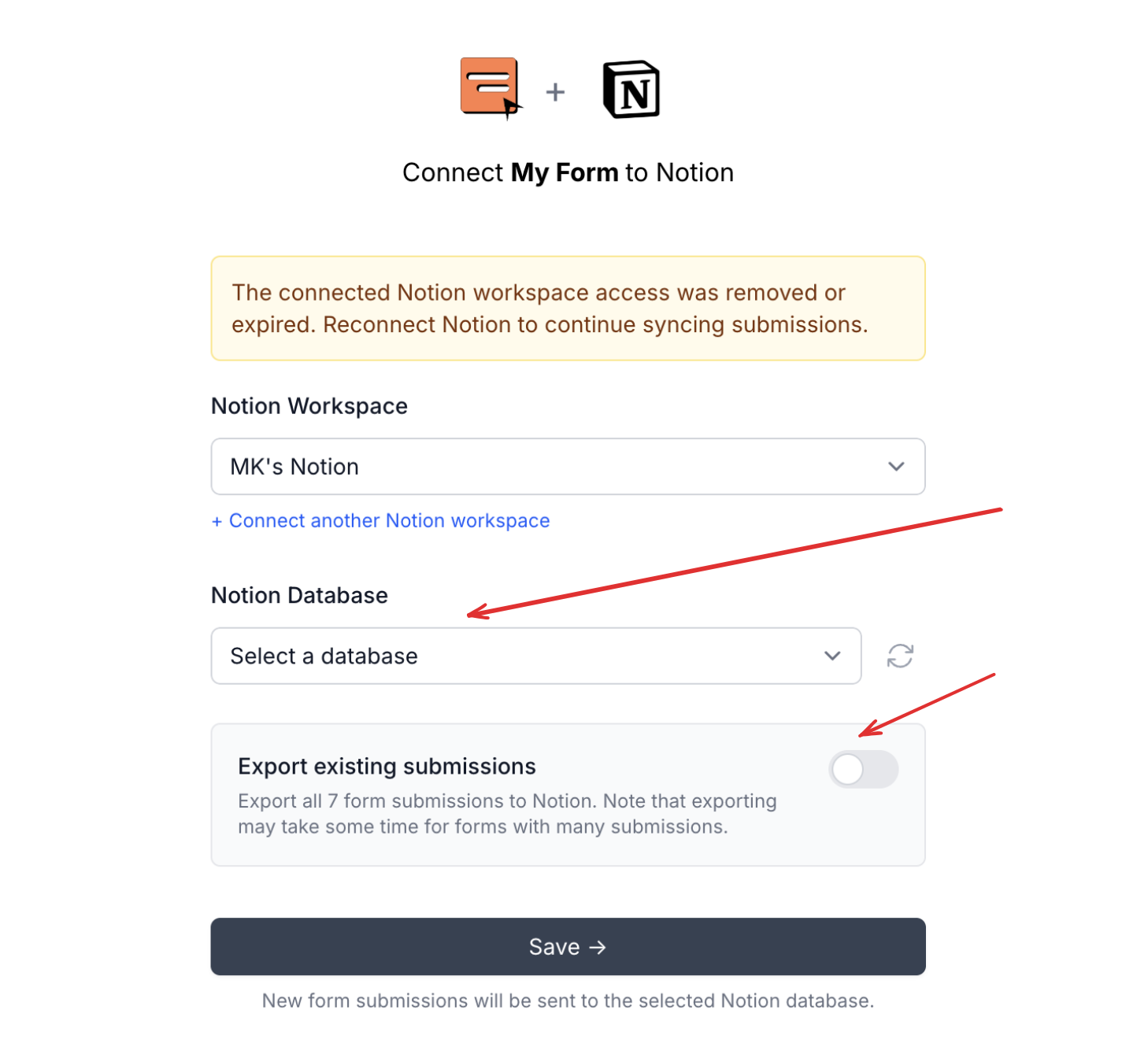
Select a database and optionally enable the "Export existing submissions" option if you already have submissions in the form.
Make sure you map your fields properly. The left side are fields from your form and on the right are fields from your Notion database.
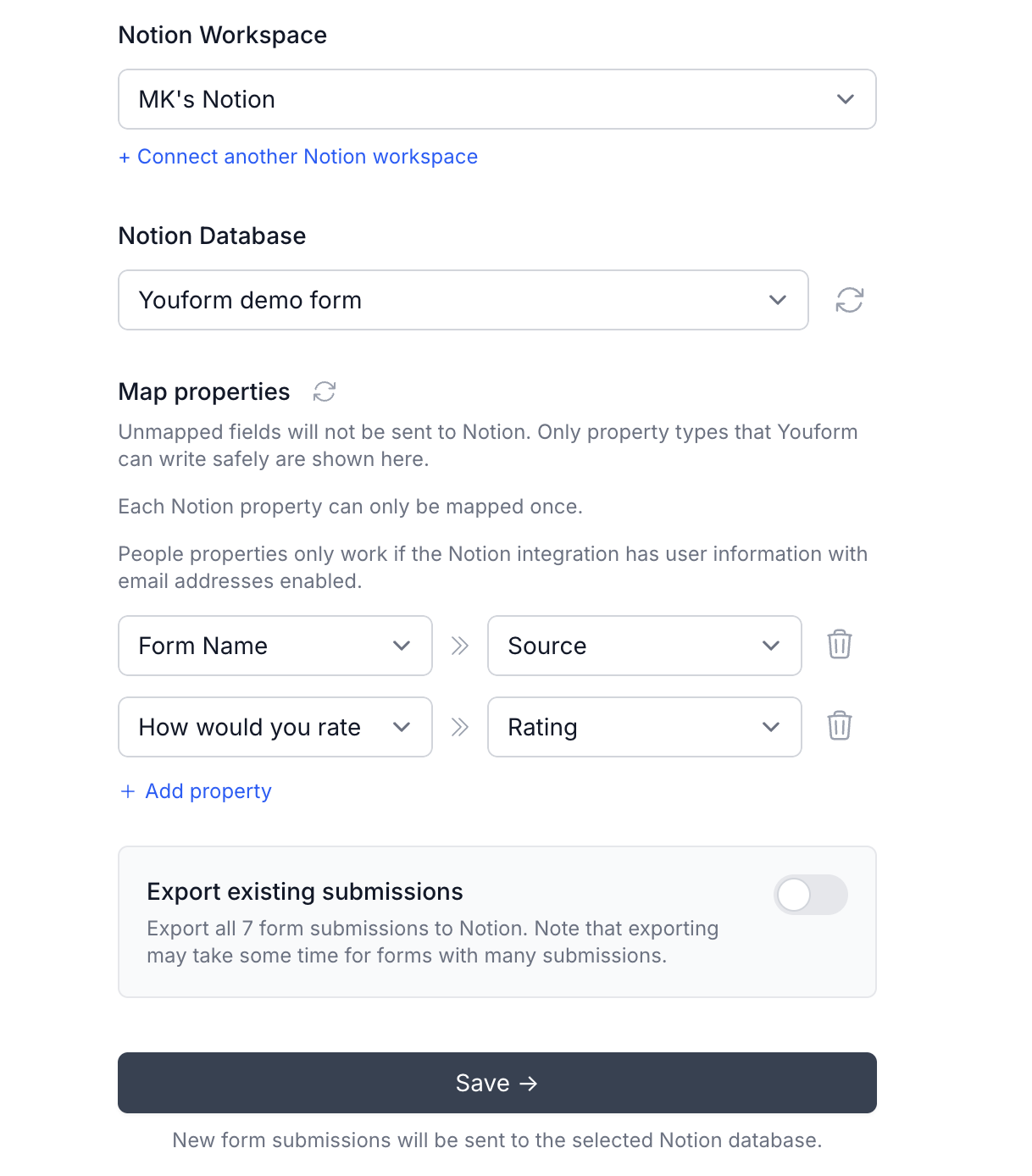
Map your Youform fields with Notion database fields
Once you hit "save" you will see a green "Connected" status message beside the Notion integration and also will be able to open the Notion database directly from there.
How to disconnect Notion integration?
You can disconnect Notion integration in 2 ways:
Form level disconnection
Go to your form's integration page
Scroll down to the Notion option
Click Edit (visible if you have connected a Notion database to this form)
In the modal that opens, click Remove Integration at the bottom
Account level disconnection
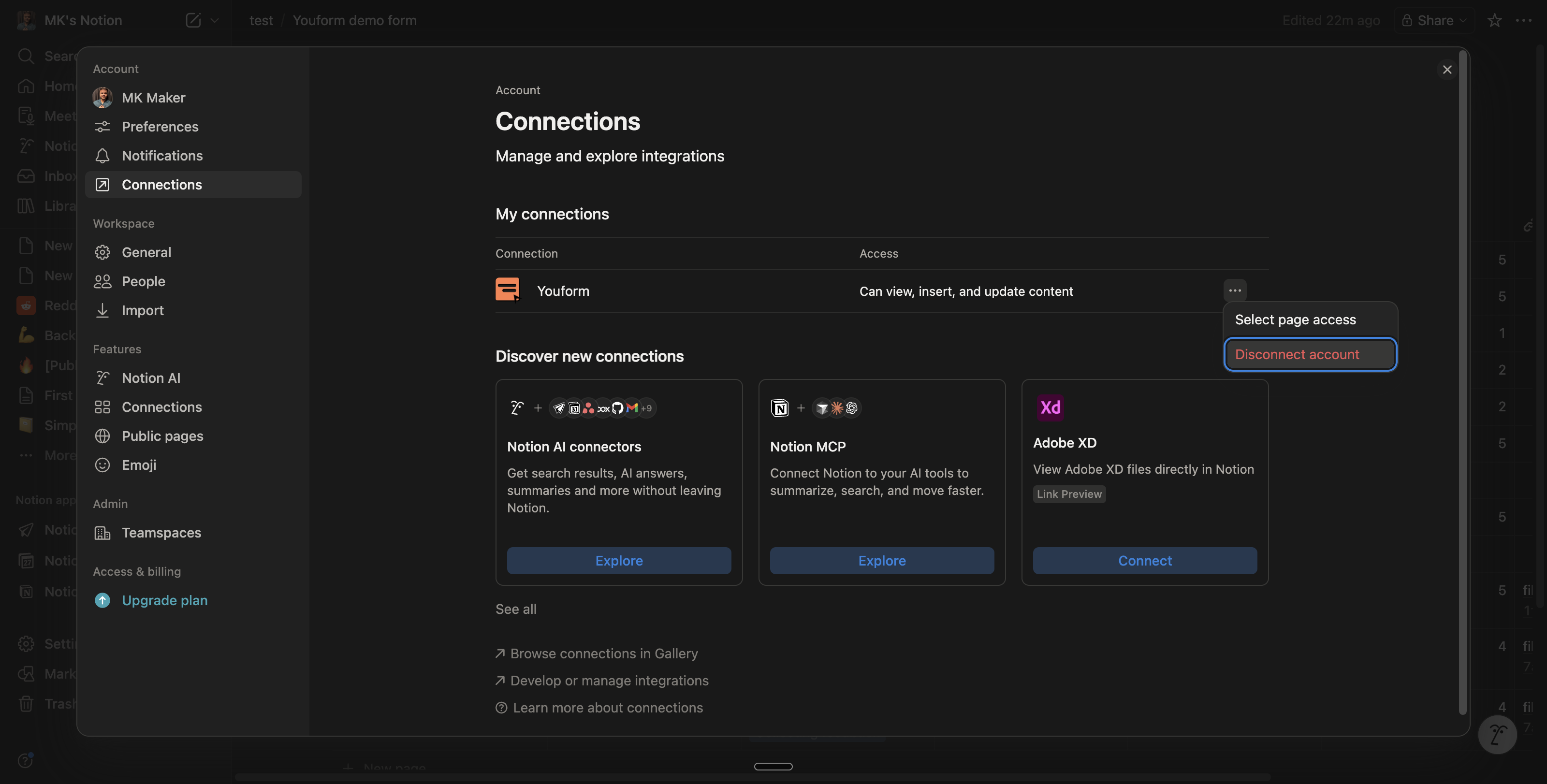
Account level disconnection is not available directly from YouForm. To disconnect at the account level:
Go to your Notion workspace
From the left panel, go to Settings
Select Connections
Remove the YouForm integration
FAQs & Troubleshoot guide:
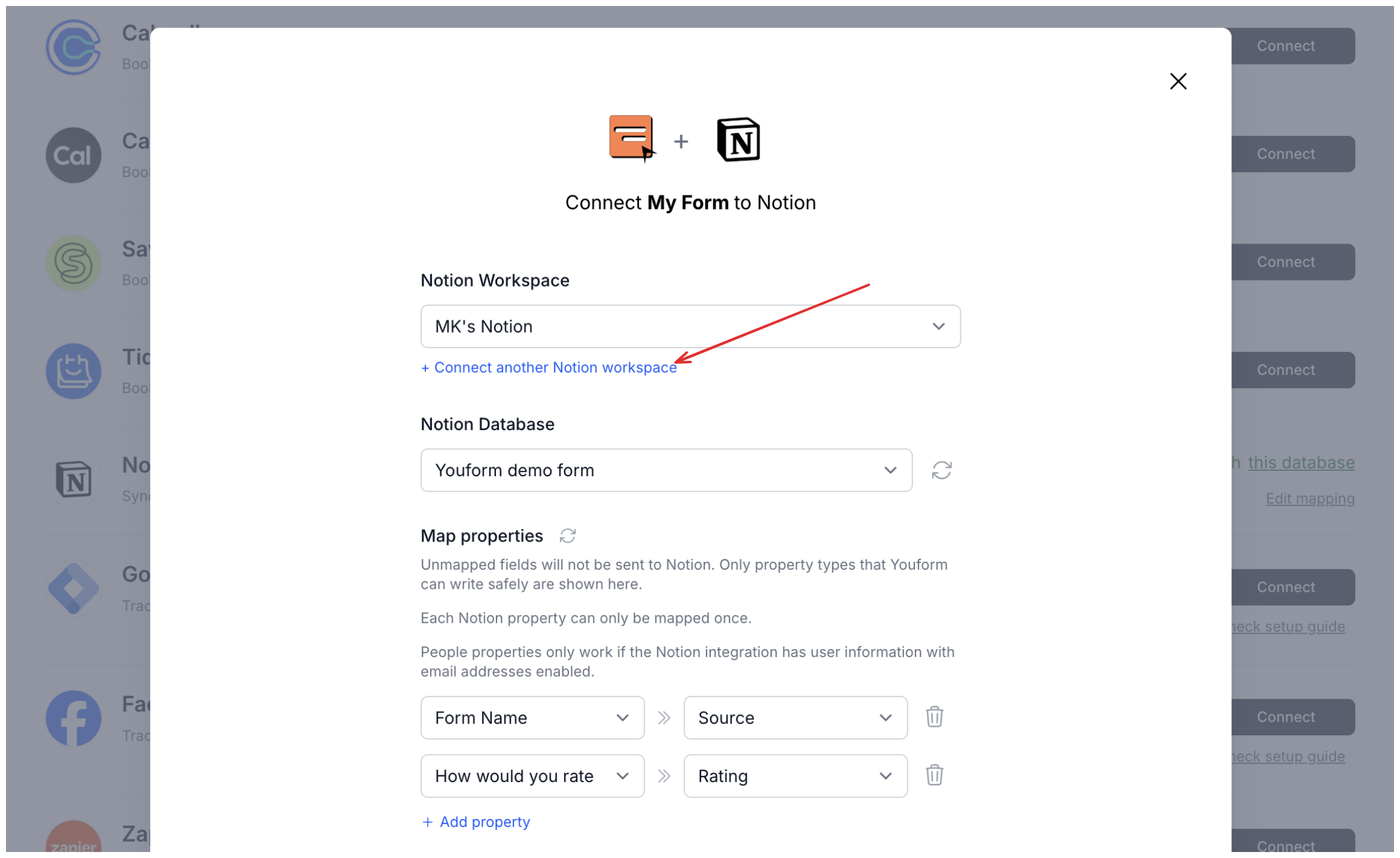
Can I connect multiple workspaces of my Notion to Youform? Yes, you can connect multiple Notion workspaces.
I connected Notion to Youform, but no databases are loading.
This is possible if you have either not selected any page while giving authorization to Youform, or you don't have any pages or databases in your Notion yet.
There are two ways to solve this:
You can either go to your forms integration page in Youform and open the Notion modal. There you will see the "Grant access in Notion" button.
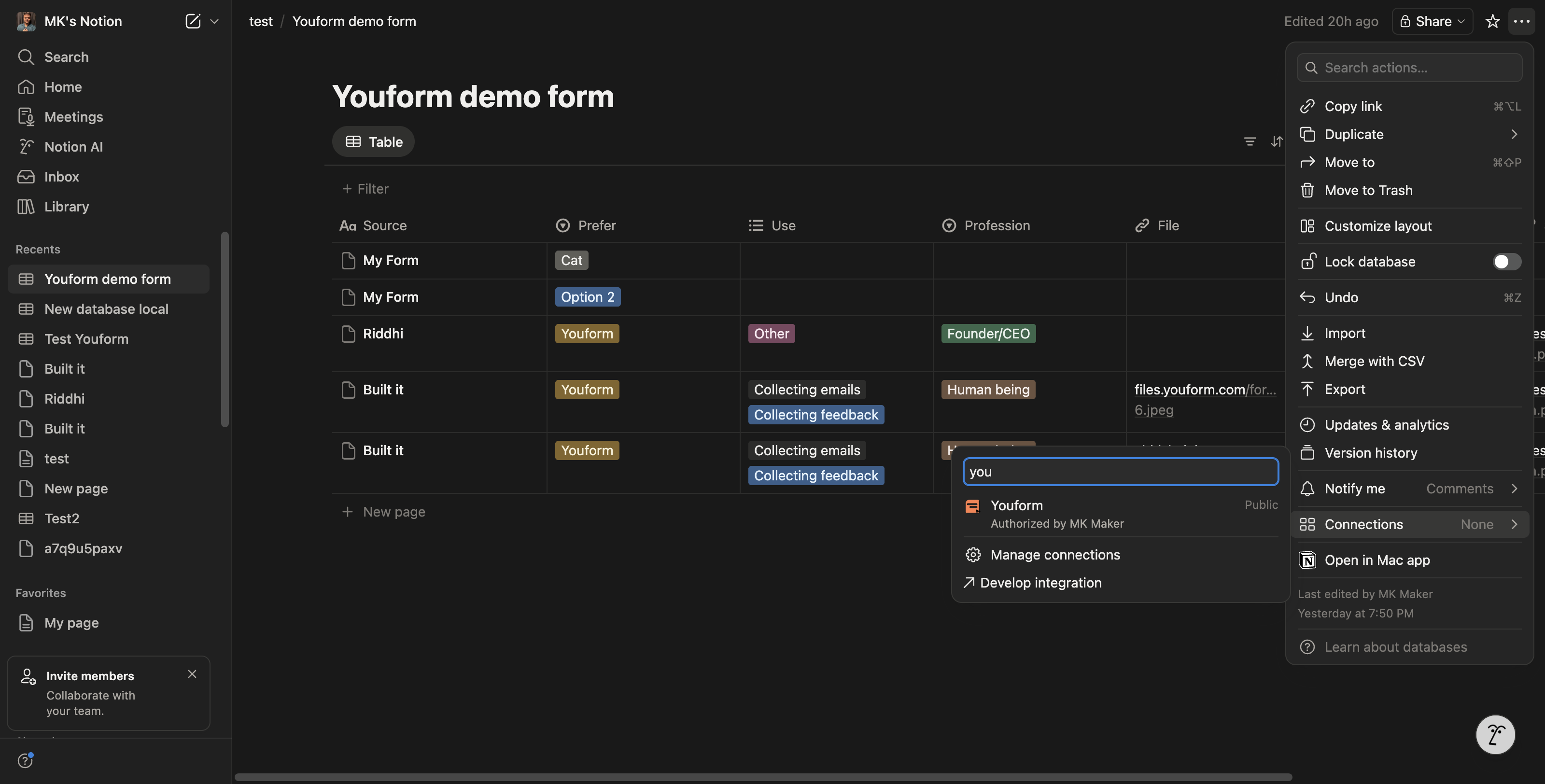
Or, you can go to your Notion database page, click on the three dots on the top right, go to the Connection option, and from there search for Youform and give it access.
You can use Notion integration to easily search and filter your submissions.