

Connect PostHog to Youform (Session Replay)
Updated 3 months ago
You can use PostHog with Youform to record session replays and watch how people fill out your forms.
Youform doesn't have a native PostHog integration yet, but you can add PostHog through our Google Tag Manager (GTM) integration. It takes about 5 minutes.
Please make sure you have:
A PostHog account (free plan works)
A GTM account (free)
A Youform PRO plan (needed for the GTM integration)
Step 1: Connect GTM to your Youform
Follow our Google Tag Manager in Youform guide to connect your GTM container ID (looks like GTM-XXXXXXX) to your form.
If you already have GTM connected, skip to Step 2.
Step 2: Copy your PostHog snippet (Full docs from PostHog here )
In PostHog, go to Settings → Project → Web snippet.
Copy the full snippet. It may look like this but check from your current PostHog UI:
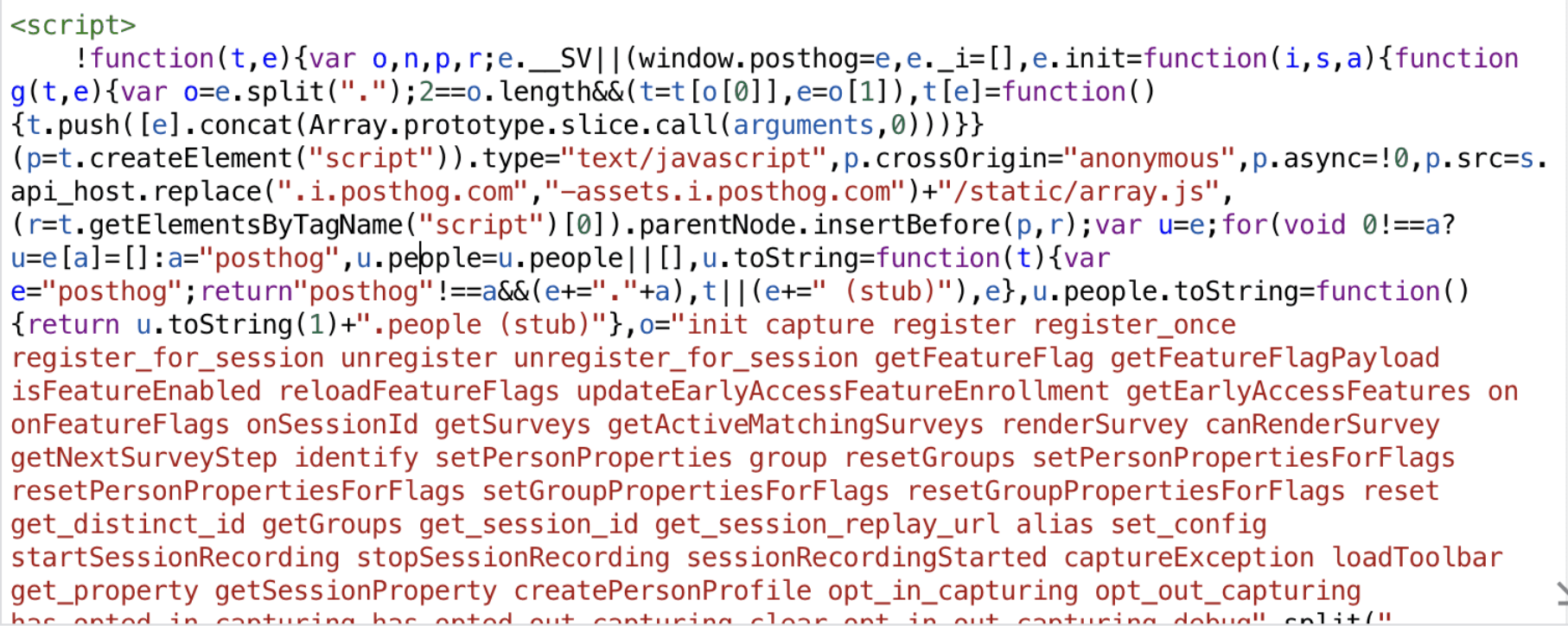
(Your snippet will have your own project key — always copy it from your PostHog dashboard, don't type it by hand.)
Step 3: Add the snippet as a Custom HTML tag in GTM
Open your container in Google Tag Manager.
Click Tags → New.
Name it "PostHog".
Under Tag Configuration, choose Custom HTML.
Paste your PostHog snippet into the HTML box.
Under Triggering, choose All Pages.
Click Save.
Step 4: Publish your GTM container
Click Submit (top right in GTM), then Publish.
This step is easy to miss — your tag won't fire until the container is published.
Step 5: Turn on Session Replay in PostHog
In PostHog, go to Settings → Project → Session replay.
Turn on Record user sessions.
Step 6: Test it
Open your form's public link in a new incognito tab and fill out a question or two.
In PostHog, go to Session replay. Your recording should appear within a couple of minutes.
That's it! Every visit to your form is now recorded, and you can watch exactly how people move through and fill out your form.
Good to know
Embedded forms: If you embed your Youform on your own website, the recording happens inside the form itself. You will see replays of people filling the form, but they will show up in PostHog as separate sessions from your main website's recordings.
Works with other tools too: The same steps work for Hotjar, Microsoft Clarity, Mixpanel and similar tools — just paste their snippet instead of PostHog's in Step 3.
Youform's form events: Your form also sends formViewed, formBlockViewed, formFillupStarted and formSubmitted events to GTM's dataLayer. You can forward these to PostHog as custom events if you want funnel data alongside replays.
Troubleshooting
Please make sure:
Your GTM container is published (Step 4), not just saved.
There is no Ad Blocker in the browser you're testing with. Pause it or use another browser/incognito.
You copied the full PostHog snippet, including the tags.
Session replay is turned on in your PostHog project settings (Step 5).
You're looking at the correct PostHog project (the one matching the key in your snippet).
Recordings can take 1–2 minutes to show up after a session ends.
Still stuck? Write to us and we'll help you out.