

How to verify phone number in my form?
Updated 3 months ago
Phone Number Verification (OTP)
Verify your respondents' phone numbers with a one-time password (OTP) sent via SMS. When enabled, respondents must enter a verification code before they can submit your form.
Requirements
A Twilio account with SMS capabilities
Please note you need to add your own Twilio account and bear the cost and Twilio account set up for this feature.
Setting Up Your SMS Provider
Before you can use phone verification, you need to connect your Twilio account.
Go to Settings → Organization Settings → SMS Providers
Click Add SMS Provider
Fill in the following fields:
Name — A label for this provider (e.g., "My Twilio Account")
Provider — Select "Twilio"
Account SID — Your Twilio Account SID (starts with AC)
Auth Token — Your Twilio Auth Token (stored encrypted)
From Number — The phone number to send SMS from (e.g., +1234567890)
Messaging Service SID — Alternatively, your Twilio Messaging Service SID (starts with MG) Either From Number or Messaging Service SID is required — you need at least one.
Click Save
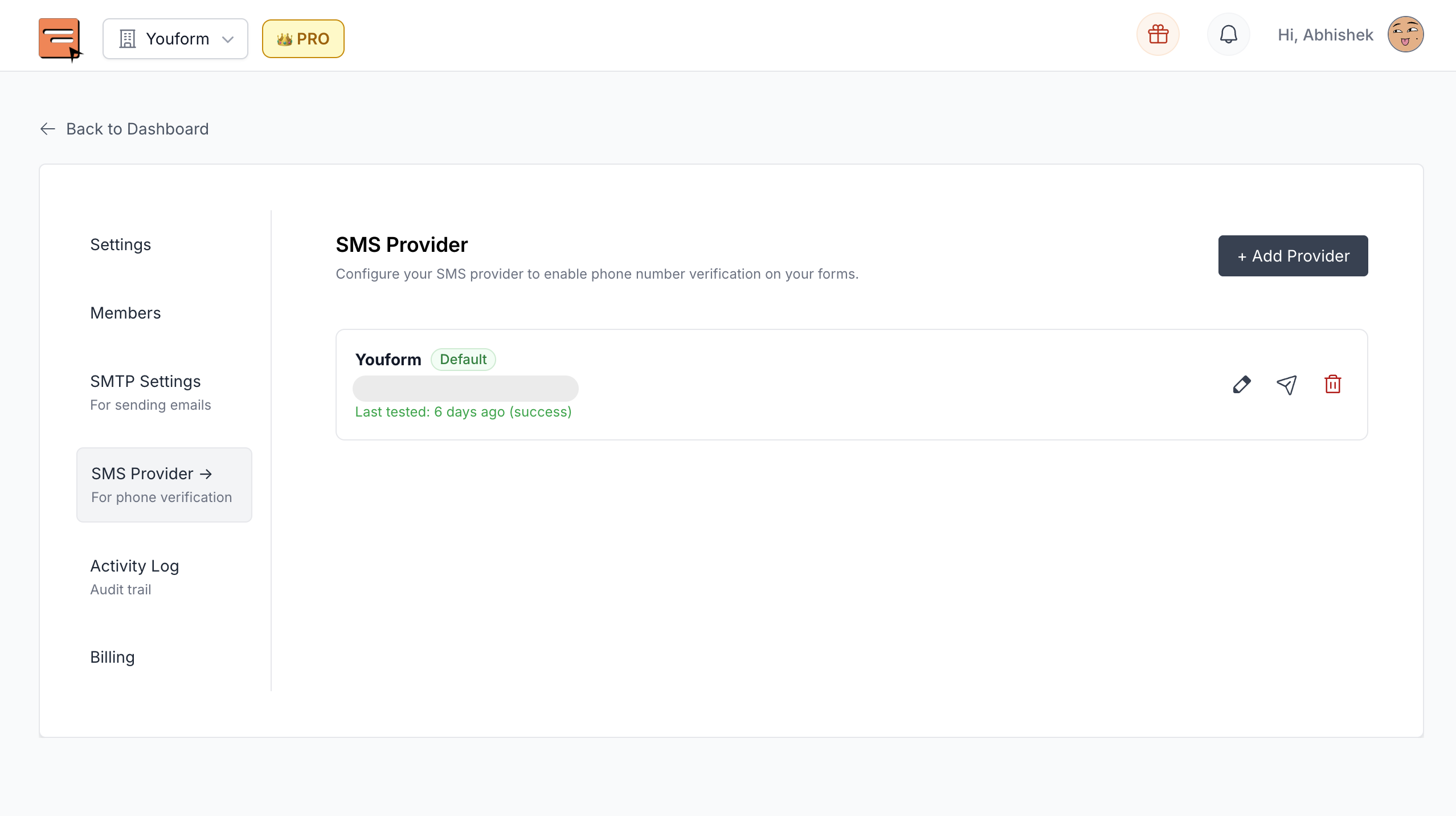
Go to your organization settings to add SMS provider to enable phone verification feature
Testing Your Connection
After saving, click the Test Connection button to verify your Twilio credentials are working correctly. You'll see a success or failure message.
Multiple Providers
You can add multiple SMS providers. One provider is marked as Default and will be used for all verification codes. Click Set as Default on any provider to switch.
Enabling Phone Verification on a Form
Open your form in the Builder
Add a Phone Number block
In the block settings (on the right), toggle Verify Phone on

Phone verification cannot be enabled on phone blocks inside groups (multi-question pages). The phone block must be a standalone question.
How It Works for Respondents
When a respondent reaches a phone number question with verification enabled:
Step 1: Enter Phone Number
The respondent enters their phone number using an international phone input with automatic country detection. The country code is pre-selected based on the respondent's location.
Step 2: Get Verification Code
The respondent clicks Get Code. A 6-digit verification code is sent to their phone via SMS.
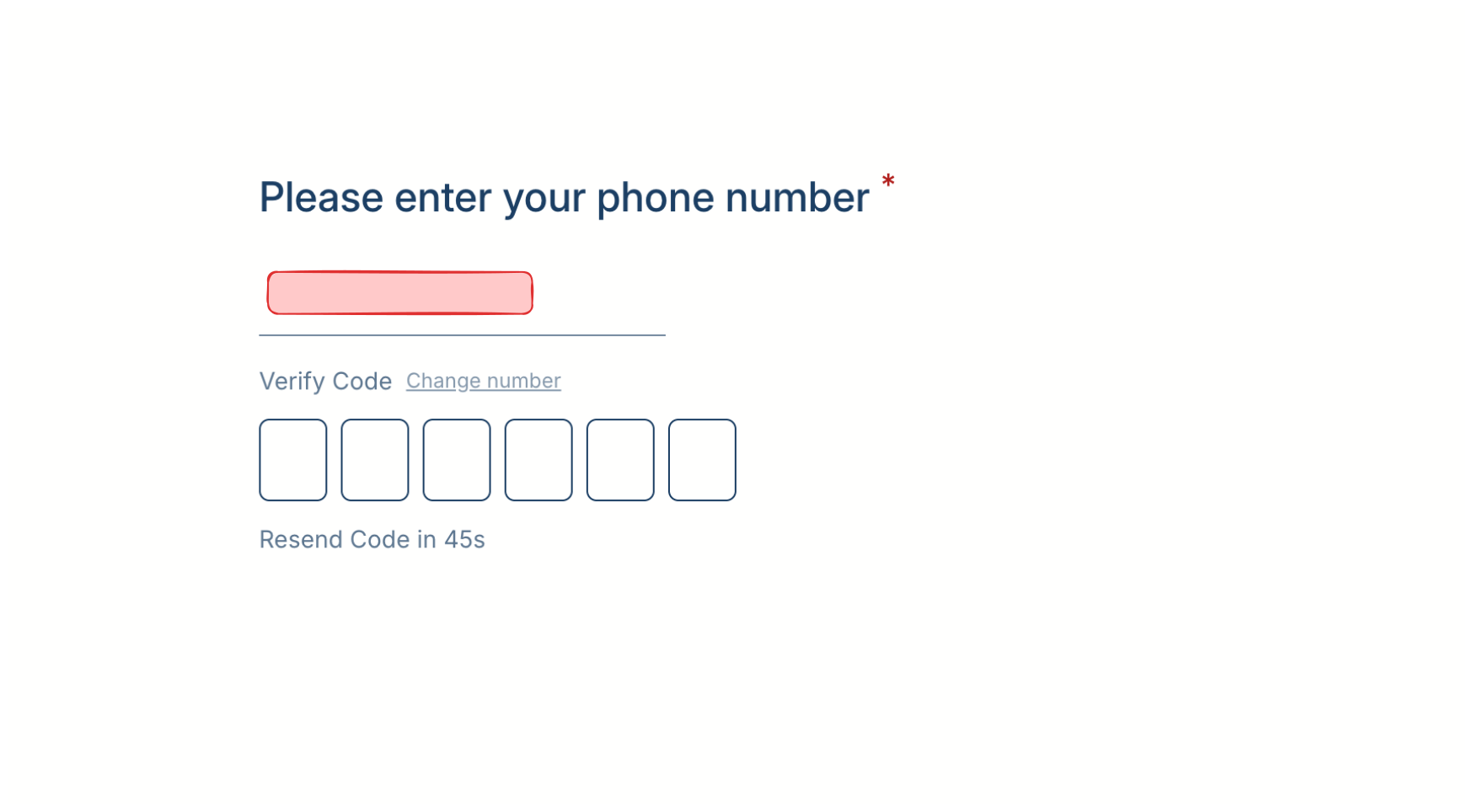
Step 3: Enter the Code
Six input boxes appear for the respondent to enter the code. The code auto-advances between boxes as digits are typed, and supports pasting the full code at once. The form automatically verifies once all 6 digits are entered.
The code expires after 5 minutes
If the code expires, the respondent can request a new one
The respondent can click Change number to go back and enter a different phone number
Step 4: Verified
Once verified, a green Phone verified checkmark appears and the respondent can proceed to the next question or submit the form.
Resending Codes
After requesting a code, the respondent must wait 60 seconds before they can resend
A countdown timer shows the remaining wait time
The respondent can resend up to 3 times (4 codes total including the first)
Rate Limits
To prevent abuse, the following rate limits are enforced:
If a respondent exceeds these limits, they'll see a message asking them to try again later.
Verification Code Entry Limits
Respondents have 5 attempts to enter the correct code. After 5 failed attempts, they must request a new code.
Customizing Labels
You can customize the verification-related text labels in your form's Language Settings:
These labels are also included when translating your form to other languages.
Preview / Test Mode
When previewing your form (draft mode), phone verification uses a dummy code. Enter 000000 to simulate a successful verification without sending a real SMS. This lets you test the flow without consuming SMS credits.
What Happens If You Downgrade or Remove Your SMS Provider
If your organization loses access to phone verification — either by downgrading from the Business plan or by removing all SMS providers — your existing forms will gracefully degrade:
Forms with phone verification enabled will continue to accept submissions
The phone number field will work as a regular phone input (no OTP required)
Respondents will not be blocked from submitting
You will not be able to enable phone verification on new blocks until requirements are met again
Troubleshooting
Phone verification requires Business plan
Upgrade your organization to the Business plan.
No SMS provider configured
Add and configure a Twilio SMS provider in Organization Settings.
Failed to send verification code
Check your Twilio credentials using the Test Connection button. Ensure your Twilio account has SMS credits and the From Number is valid.
Code expired
The 5-minute window has passed. Click Resend Code to get a new one.
Maximum resend limit reached
The respondent has requested too many codes. They need to wait before trying again.
Too many verification attempts
Rate limits have been hit. Wait for the cooldown period to pass.
Verification toggle is disabled in builder
Ensure your organization has a Business plan and at least one SMS provider configured. Also check that the phone block is not inside a group.