

How to use webhooks in Youform?
Updated 2 months ago
Youform makes it easy to integrate the forms to any apps that you use, using webhooks.
Webhooks let you send form submission data to any URL in real time. Every time someone submits your form, Youform sends a POST request with the submission data to each webhook you've configured.
Setting up a webhook
Open your form in the Youform dashboard
Go to Integrations and click Manage on the Webhook card
Enter your endpoint URL (must be https://)
Click Add webhook
Youform will send a test payload to your URL while saving. If your endpoint returns a non-2xx status code, the webhook will be saved but it will be disabled and you can see the error by clicking on the logs button beside the webhook.
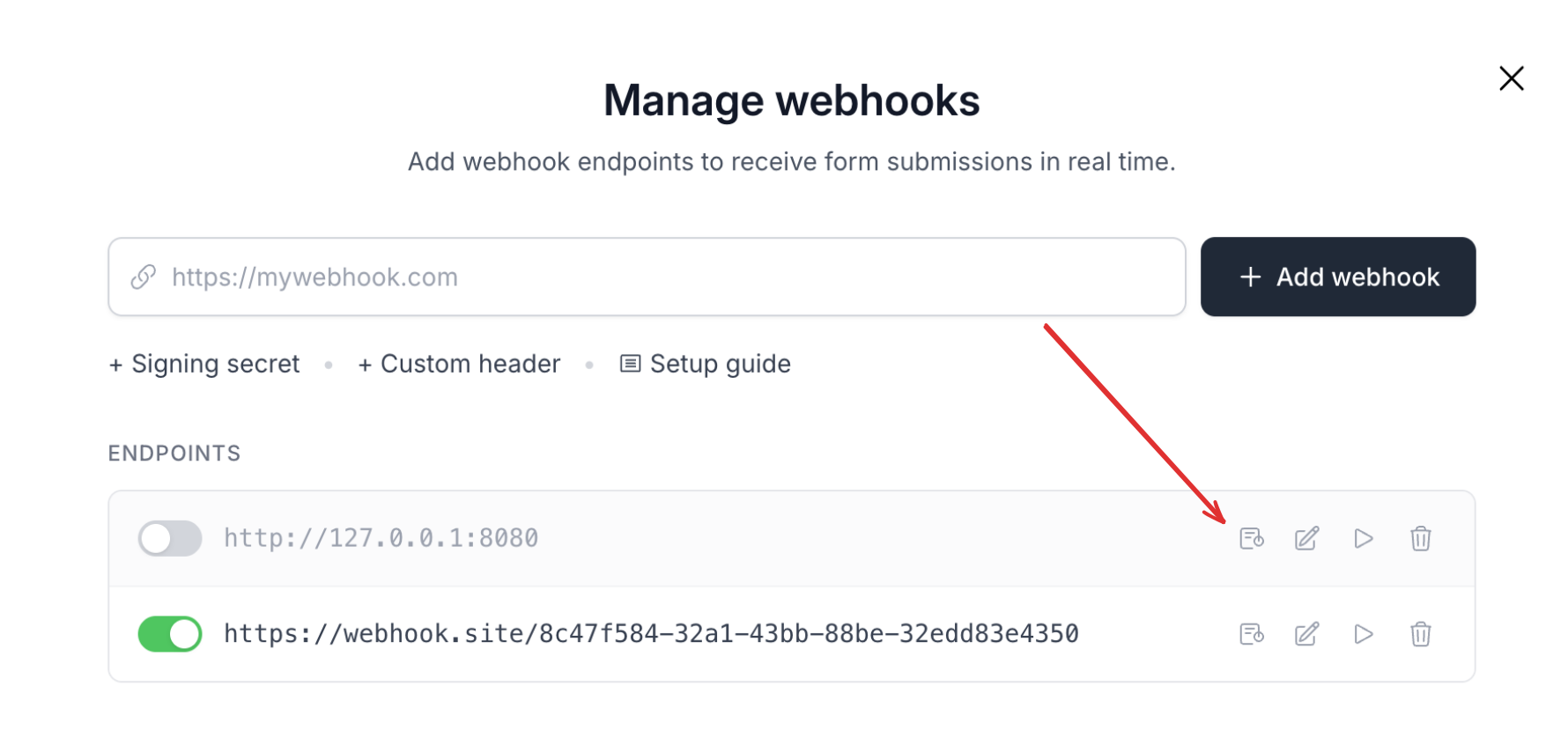
You can create the log icon beside the webhook to open the delivery logs details.
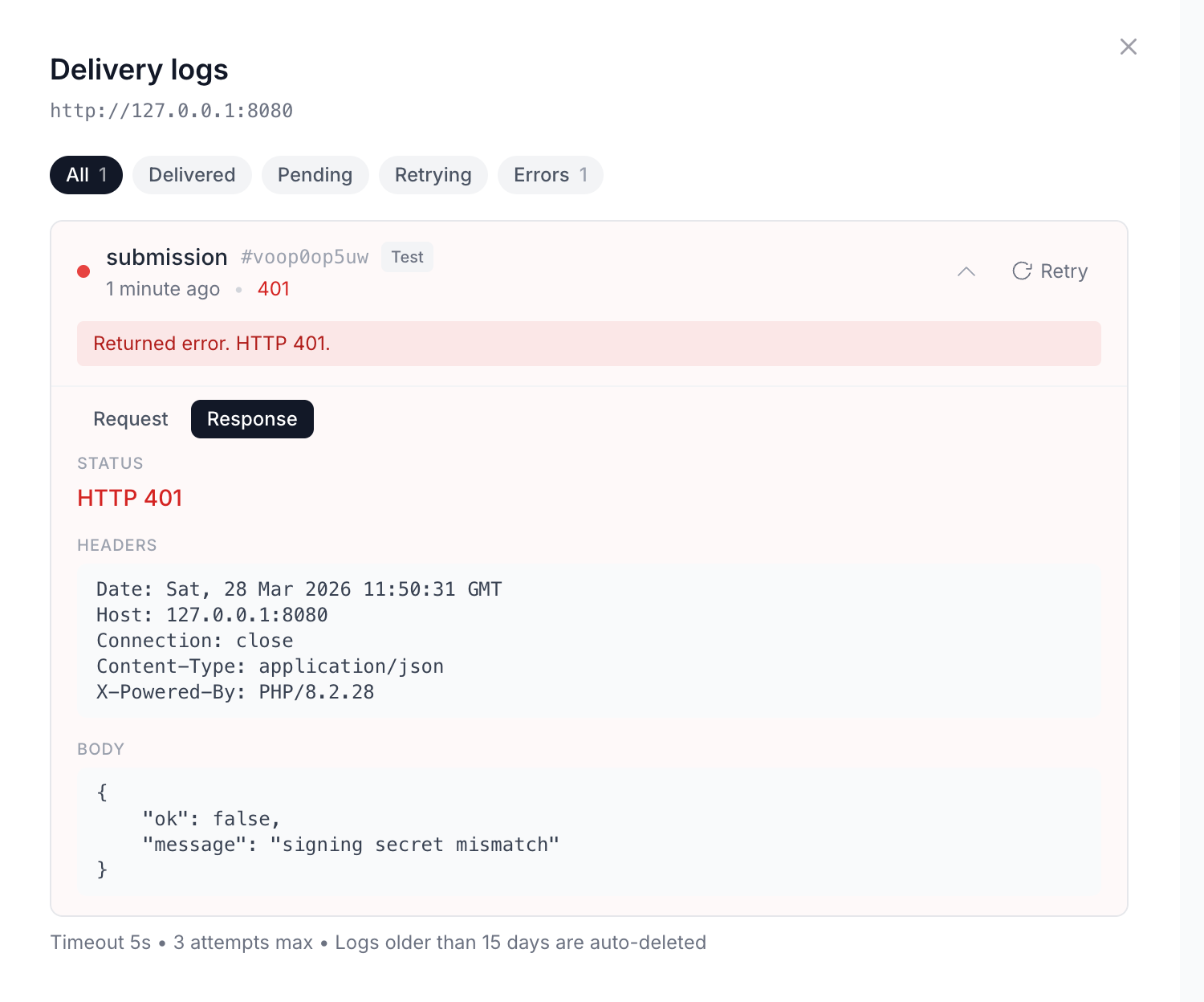
A sample log saying why a webhook failed - 401 HTTP code with signing secret mismatch
You can add multiple webhooks per form. Each webhook is independent — it has its own URL, signing secret, custom headers, and delivery logs.
Enabling and disabling webhooks
Each webhook has a toggle switch. Disabled webhooks won't receive any deliveries. You can re-enable them at any time without losing your configuration.
Signing secret (HMAC-SHA256)
You can optionally add a signing secret to verify that webhook requests are genuinely from Youform.
In the webhook modal, click + Signing secret
A secret is auto-generated for you (you can also set your own)
Save the webhook
When a signing secret is set, every delivery includes a Signature header containing an HMAC-SHA256 hash of the request body, signed with your secret.
Verifying the signature
To verify a webhook delivery, compute the HMAC-SHA256 of the raw request body using your signing secret and compare it to the Signature header value.
PHP example:
$payload = file_get_contents('php://input'); $secret = 'your-signing-secret';
$computed = hash_hmac('sha256', $payload, $secret); $received = $_SERVER['HTTP_SIGNATURE'] ?? '';
if (!hash_equals($computed, $received)) { http_response_code(401); exit('Invalid signature'); }
Node.js example:
const crypto = require('crypto');

function verifySignature(payload, secret, signatureHeader) {
  const computed = crypto .createHmac('sha256', secret) .update(payload) .digest('hex');
  return crypto.timingSafeEqual(
    Buffer.from(computed),
    Buffer.from(signatureHeader)
  );
}
Custom headers
You can add custom HTTP headers to each webhook. This is useful for authentication tokens, API keys, or any other headers your endpoint expects.
In the webhook modal, click + Custom header
Enter a header name and value
Add as many headers as you need
Custom headers are sent with every delivery, including test payloads and retries.
Payload format (Sample webhook JSON)
Every webhook delivery is a POST request with a JSON body. Here's the structure:
{
    "event_id": "a1b2c3d4-e5f6-...",
    "event_type": "submission",
    "form_id": "your-form-slug",
    "form_name": "My Form",
    "submission_id": "sub_abc123",
    "started_at": "2026-03-28T10:00:00.000000Z",
     "completed_at": "2026-03-28T10:01:30.000000Z",
     "fields": [
        {
            "id": "field_id",
            "question": "What is your name?",
            "type": "input",
            "answer": "Jane Doe" ,
            "position": 1
        },
        {
            "id": "eb37a5f2-fcc0-472f-82e1-a043b32b898d",
            "type": "radio",
            "answer": "Blue",
            "answer_id": [
                "c317664c-ddd8-404a-b29b-ce2e76cf6c1b"
            ],
            "options": [
                {
                    "id": "9e3b62b8-370d-4454-a97e-d82108007196",
                    "value": "Red",
                    "position": 1
                },
                {
                    "id": "c317664c-ddd8-404a-b29b-ce2e76cf6c1b",
                    "value": "Blue",
                    "position": 2
                },
                {
                    "id": "opt_1774704296505_a8ytzt6ig",
                    "value": "Green",
                    "position": 2.5,
                    "image_url": null
                }
            ],
            "position": 8,
            "question": "Which do you prefer?",
        },
        {
            "id": "utm_source",
            "question": "utm_source",
            "type": "hidden",
            "answer": "google",
            "position": 3
        },
        {
            "id": "score",
            "question": "score",
            "type": "variable",
            "name": "score",
            "answer": "42",
            "position": 4
        }
    ]
}
Each entry in fields includes:
id — the unique field identifier
question — the question text
position — the position where the field appears in the form
type — the field type (e.g., input, multiple_choice, rating, hidden, variable)
answer — the respondent's answer as a string
answer_id — respondent answers IDs in case of closed-ended questions like: single select option, multi-select options, drop-down, ranking
Hidden fields and variables are included at the end of the fields array.
Custom payload (optional)
By default, every delivery sends the standard payload shown above. If your endpoint expects a specific JSON shape — for example, a CRM that wants exactly {"email": "...", "firstName": "..."} — you can write the exact JSON body yourself and use tokens as placeholders for the respondent's answers.
In the webhook modal, click + Custom payload
Write the JSON body you want us to send. Click a token chip below the box to insert it at your cursor — each chip is labelled with the question it belongs to
Save the webhook. We send a test delivery using your latest submission, so you can see the custom payload arriving at your endpoint right away
Example:
{
  "email": "{{field:abc123}}",
  "firstName": "{{field:abc123.first_name}}",
  "source": "youform",
  "submittedAt": "{{completed_at}}"
}
On every submission, each token is replaced with that respondent's answer and the result is sent as the request body.
Available tokens:
One token per question, labelled with its question text — e.g.
{{field:abc123}}Contact and Address sub-fields — e.g.
{{field:abc123.first_name}},{{field:abc123.city}}Hidden fields — e.g.
{{hidden:utm_source}}Variables — e.g.
{{variable:score}}Submission info —
{{form_id}},{{form_name}},{{submission_id}},{{started_at}},{{completed_at}}{{answers}}(all answers as one JSON object) and{{fields}}(the full field-by-field detail from the standard payload) — use these when you want your own wrapper around the complete data
A token that stands alone as a value keeps its type: "data": "{{answers}}" sends data as a real JSON object, not a string. A token inside a longer string (like "Name: {{field:abc123}}") is inserted as text. Unanswered questions become an empty string.
The body must be valid JSON — if it can't be parsed, we send the standard payload instead of failing the delivery. Signing secrets, custom headers, retries, and delivery logs all work the same with a custom payload.
To go back to the standard payload, click the ✕ next to the custom payload box and save the webhook.
Test deliveries
You can send a test payload to any saved webhook by clicking the Send test payload button. This sends a real HTTP request using the most recent submission's data (or sample data if no submissions exist). The test includes your signing secret and custom headers.
Delivery logs
Click the View logs button on any webhook to open the delivery logs drawer. Each log entry shows:
Status — Delivered, Pending, Retrying, or Error
HTTP status code from your endpoint
Timestamp of the delivery attempt
Retry count — how many automatic retries occurred
Request and response details — expand any entry to see the full request headers, request body, response headers, and response body
Use the status filter tabs to quickly find failed deliveries.
Logs are automatically deleted after 15 days.
Automatic retries
If your endpoint returns a non-2xx response or the request times out, Youform automatically retries the delivery. The retry count and timing are configured at the system level. You can see the retry count on each log entry.
We recommend returning a 2xx HTTP code as soon as you receive webhook and do further processing in a separate queue job or service. This way Youform won't send webhook for the same event again.
Manual retries
For any log entry, you can click the Retry button to manually re-deliver the payload. Manual retries appear in the logs with a "Manual retry" badge and are linked to the original delivery for traceability.
Editing a webhook
Click the Edit button on any webhook to modify its URL, signing secret, custom headers, or custom payload. Editing a disabled webhook preserves its disabled state — it won't be re-enabled automatically.
Deleting a webhook
Click the Delete button and confirm to remove a webhook. Deleted webhooks stop receiving deliveries immediately. Their existing delivery logs remain visible until they expire.
Legacy webhook guide (for v1 webhook only)
if you are using the legacy webhook, then please follow the following guide, but we strongly recommend upgrading to the new v2 webhook by following the guide below
The first step is to go into your form by choosing it from the dashboard.
Once you are inside the form just click on the Integrate tab. The following page will open:
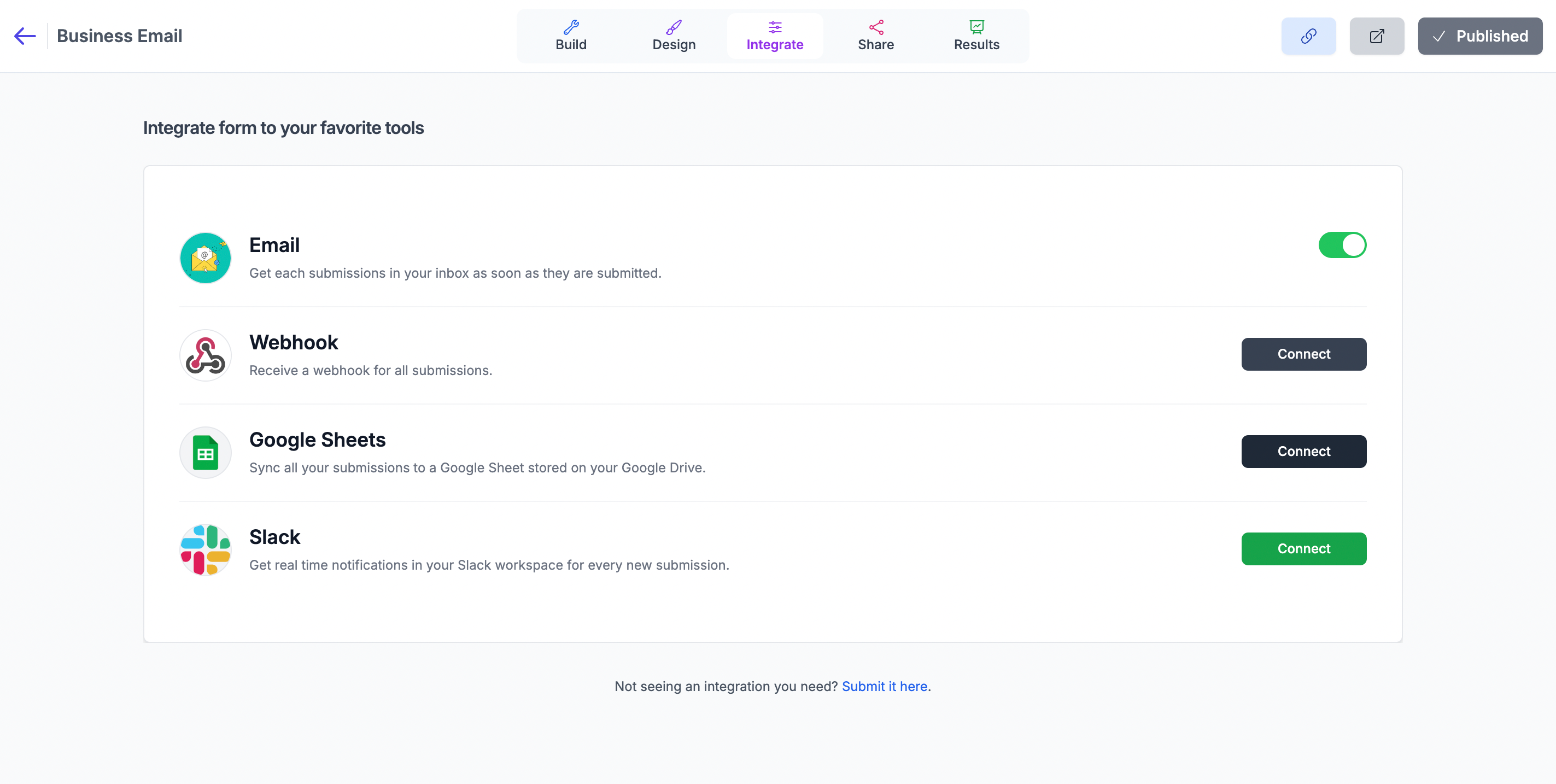
Now click on the connect button next to the Webhook item.
You will see a popup. Just enter your webhook URL. Please note that Youform will send a POST request to that URL with all the submitted data inside the body.
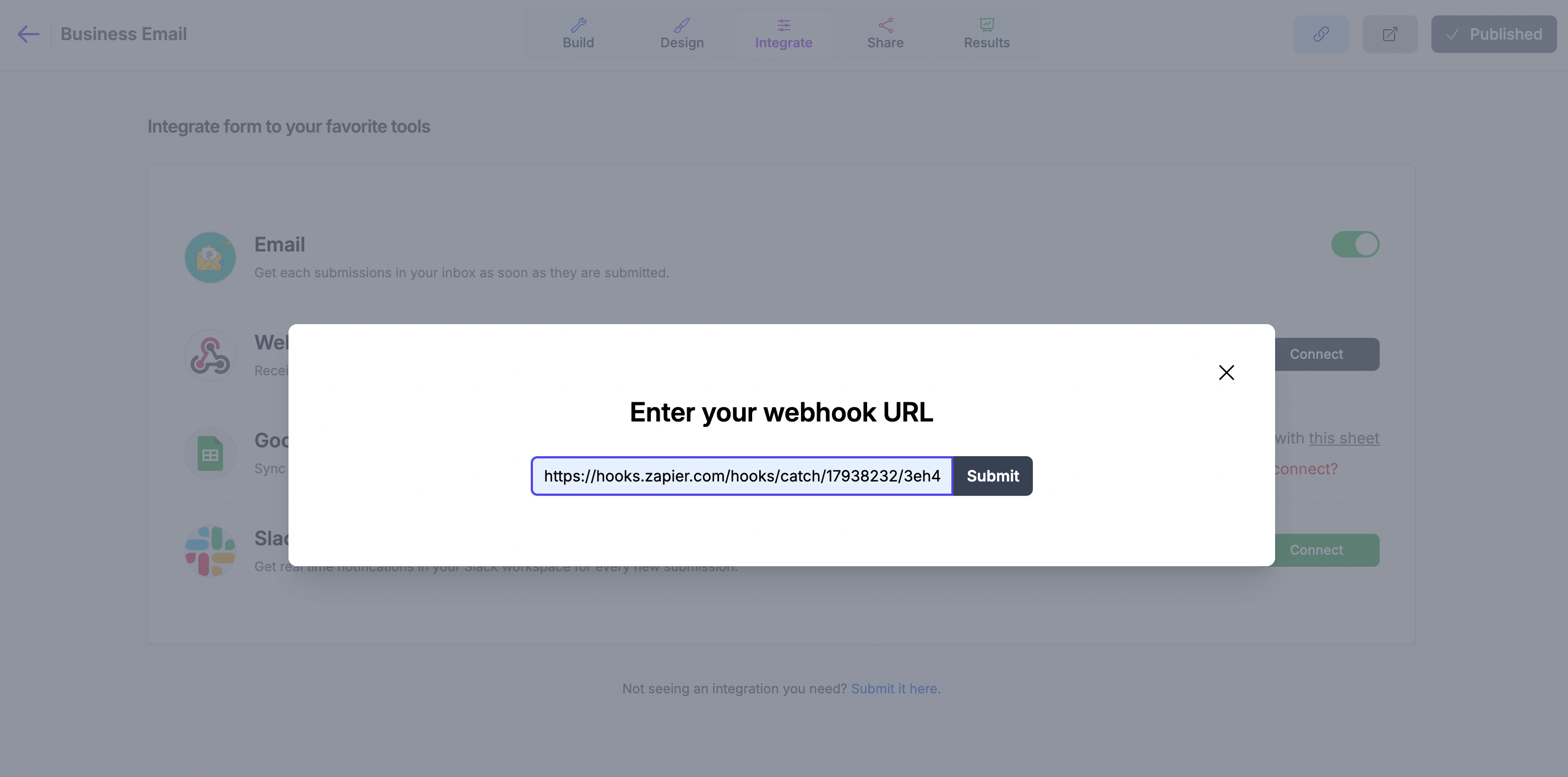
Once you hit save, Youform will send webhook requests to that URL for completed responses. We don't send partial submissions to webhooks yet.
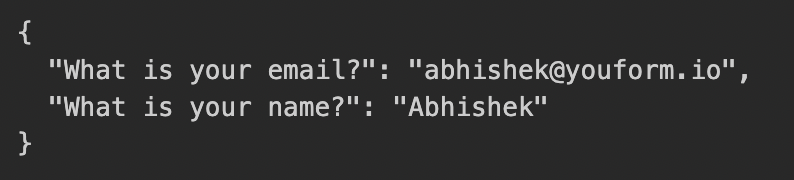
A sample webhook payload for a form that has 2 fields will look like following, basically key-value pair of question and submitted answers.
Upgrade guide
Upgrading from older webhook versions
If you're using an older webhook version, we strongly recommend migrating to version 2. The older webhook v1 version will still continue to work, but you will miss the advanced features like signing secrets, custom headers, webhook logs, etc
Migration steps:
Follow the v2 webhook guide at the top of this help docs
Add your new v2 webhook
Remove the older webhook from your integration page
In your integration page webhook modal, you'll see a yellow alert with a remove button. Click it once you've successfully added the new v2 webhook.
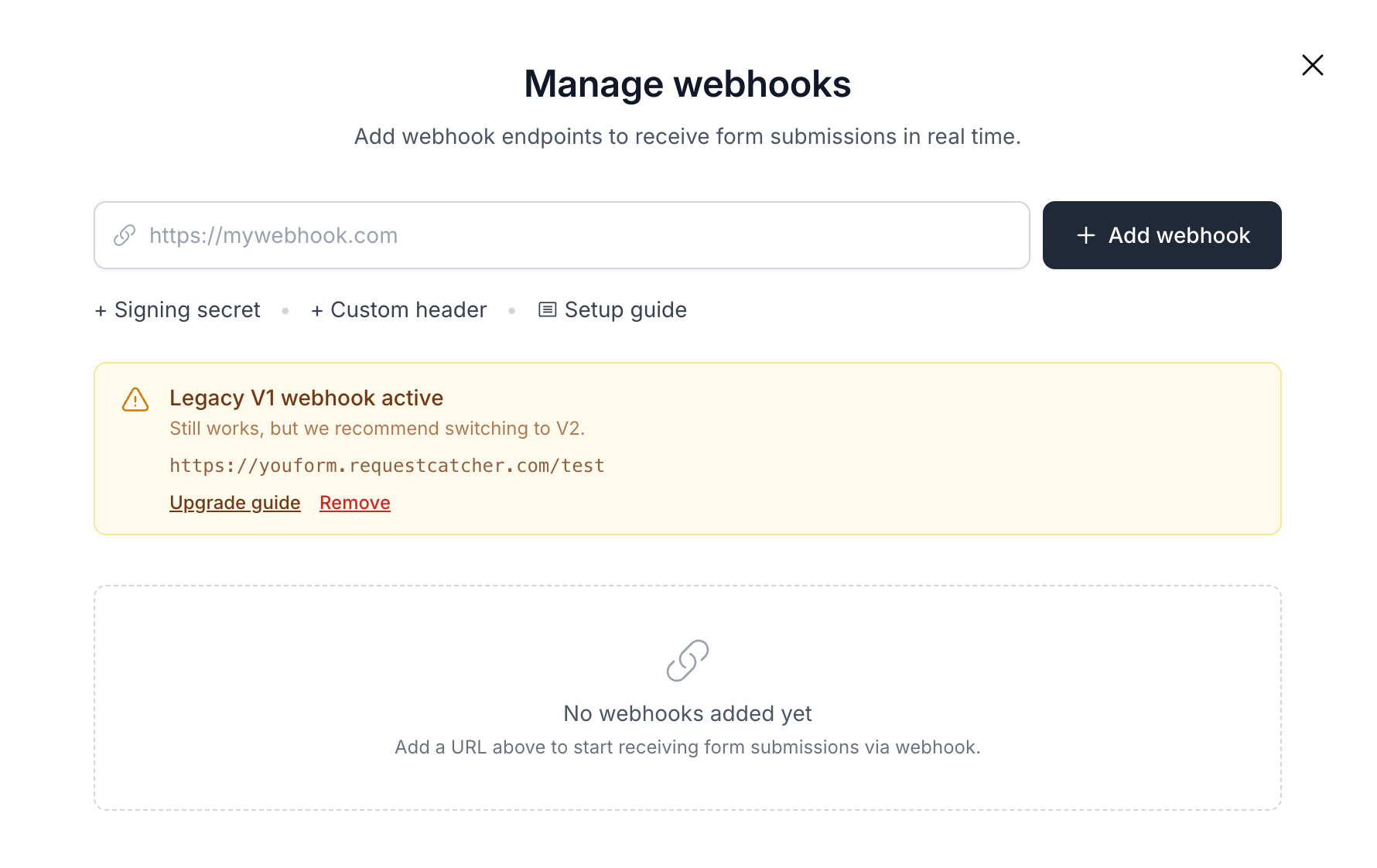
Add new webhook by following the v2 webhook guide then remove the legacy one.
When to use webhooks?
You can use webhooks for various reasons, like automating your workflow using Make.com , n8n or sending to your own system. Consider this as a system to get real-time notifications of your form submissions sent to any systems outside Youform. Using our signing secret feature this data transfer is secure and robust.